
Floating Multitasking Android Review 2026: Powerful Windows With a Complicated Setup

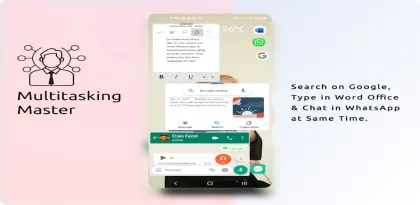

Floating Multitasking promises something Android users have wanted for years: launch ordinary apps in movable windows, keep shortcuts above whatever you are doing, and build a phone or tablet workspace that behaves more like a desktop. Its package combines floating shortcuts, floating widgets, freeform windows, split-screen launching, search, folders, and optional locks for sensitive shortcuts.
The idea is excellent. A calculator can sit above a shopping page, notes can remain beside a video call, and a messaging window can be available without repeatedly leaving a document. On a large tablet, foldable, or desktop-mode display, this can turn unused screen space into a real productivity advantage.
The experience is not universal. Android does not expose one consistent public switch that lets every third-party app turn every other app into a resizable window. Results depend on Android version, manufacturer software, whether the target app supports multi-window, and which developer or accessibility options are enabled. Some configurations work after a few taps; others require computer-assisted setup, and some never behave exactly like the promotional images.
Floating Multitasking had more than 50,000 Google Play downloads and a 4.1-star rating when reviewed. It is a paid download with additional in-app purchases, and the listing was last updated in September 2025. This review explains what it actually does in 2026, where it saves time, why setup becomes confusing, and what to consider before granting powerful permissions.

What the App Is Trying to Fix
Android already switches apps quickly, but switching still breaks concentration. During a meeting, opening notes can hide the call. Looking up a detail while writing may move the draft into the background. Copying information between two apps involves the recent-apps screen, gestures, or split screen, and the sequence repeats every time another small task appears.
Floating Multitasking places entry points closer to the current task. A floating shortcut can remain available over another app. A configured shortcut can request that an app open in a freeform window or split-screen arrangement. Floating widgets can expose compact controls without returning home. Folders can group the tools used for a particular activity.
The app is therefore better described as a launcher and window-management assistant than as a set of miniature replacement tools. It tries to open the apps and widgets you already use in Android's available multi-window modes. That distinction explains both its potential and its limitations: the developer can request a mode, but Android and the target app ultimately determine what happens.
This is also why two users can give opposite reviews without either being dishonest. A Samsung tablet with mature pop-up-window support may cooperate readily. A phone using a stricter Android build may open the same target full screen, require freeform-window settings, or refuse resizing.
Floating Shortcuts Are the Most Reliable Feature
The simplest workflow is creating a shortcut for an installed app and placing it where it can be reached quickly. Instead of returning to the home screen or searching a crowded app drawer, you tap the floating control and launch the chosen tool.
That sounds minor, but repeated context switches add up. A translator, authenticator, calculator, password manager, note app, or messaging client can be one tap away from a browser or video. The benefit is clearest when the secondary task is brief and repeated throughout the day.
The app includes search to locate installed applications when creating shortcuts. Icons can be organized into floating folders, reducing clutter for users who want several tools. A shortcut can also be protected with a pattern or fingerprint according to the Play listing, useful when the shortcut leads to messages, wallets, or work data.
Shortcut locking is an extra barrier, not a replacement for Android's lock screen or the target app's authentication. If a banking or password app supports its own biometric lock, keep that enabled. A launcher-level prompt cannot guarantee that every alternate entry point, notification, recent-app preview, or system intent is protected.

Freeform Windows Depend on the Phone
Freeform mode is the headline feature and the source of most confusion. When everything aligns, an app opens inside a window that can sit over the home screen or another application. You can move it, resize it, or keep several tasks visible. The result resembles a small desktop and is particularly effective on tablets and foldables.
Android support is fragmented. Some manufacturers provide polished floating windows as a built-in feature. Others expose partial freeform behavior through developer settings. Certain Android versions require an ADB command from a connected computer before unrestricted freeform launching becomes available. The target app may also declare that it does not support resizing.
Floating Multitasking cannot safely bypass every platform restriction. It can create shortcuts and send launch instructions, but the operating system controls window policy. A Play Store reviewer complained that the app required computer configuration not made obvious in the promotional video. That complaint captures the product's biggest onboarding problem: buyers may believe installation alone guarantees universal windows.
Before purchasing, check the developer's current tutorial for your Android version and device brand. Search the phone settings for “floating windows,” “pop-up view,” “freeform,” or “multi-window.” If setup requires Developer options or ADB, understand each command before running it and use Google's official platform tools from a trusted computer. Avoid random scripts that request unrelated permissions.
System updates can change behavior. A shortcut that worked on one Android release may open full screen after an upgrade, while a newer release may add native window controls that make the app easier—or less necessary—to use.
Split Screen Is Less Flexible but More Predictable
Split screen is Android's more established multitasking mode. It divides the display between two apps instead of letting one float freely. Floating Multitasking can create shortcuts intended to launch apps into a split arrangement, reducing the steps needed to open the recent-apps screen and choose a second program.
For focused work, split screen is often better than overlapping windows. Both apps remain visible, neither covers the other's controls, and accidental taps are less likely to move a window. A document and reference page, video and notes, or store and calculator can share the screen cleanly.
The disadvantage is space. On a narrow phone, two full interfaces become cramped, keyboards cover much of the lower pane, and touch targets shrink. Landscape orientation helps some pairs. Tablets and foldables provide a far more convincing experience.
Compatibility still applies. Banking apps, games, camera tools, and programs with fixed orientation may block multi-window or behave poorly when resized. Video services can restrict playback for licensing or performance reasons. Floating Multitasking cannot override those design decisions reliably.

Floating Widgets Can Be More Useful Than Full Apps
Widgets are designed to present small pieces of information or controls outside a full app. Making them float can be a natural extension: a music control, task list, weather view, calendar, or quick note remains available without forcing an entire application into an awkward window.
This approach avoids some freeform compatibility problems because the widget was already designed for a bounded space. It can also use less screen area than the corresponding app. For users who mainly need status or a single button, a floating widget is often the most efficient feature in the package.
Widget quality varies. Some resize elegantly, while others assume a specific home-screen grid. A widget may refresh slowly, show clipped text, or open its full app when touched. Interactive elements can conflict with the floating container's move and resize gestures.
The Google Play description says extended floating-app functionality requires Pro access, and the store lists in-app purchases even though the base app itself is paid. Confirm which widget and window features are included in the initial purchase in your region. Family Library may cover the app purchase without covering a separate in-app upgrade.
The Interface Rewards Patience, Not Discovery
Floating Multitasking is built for power users, and it behaves like one. There are shortcuts, icons, folders, widgets, window modes, security choices, and device-specific configuration steps. The amount of control is valuable after setup, but the path to a stable arrangement is not always self-explanatory.
Recent reviews describe difficulty removing icons or closing windows. The developer points users toward video tutorials, which helps, but essential actions should also be clear inside the product. A user should not need to study a playlist to discover how to undo an experiment.
Start small. Create one shortcut for a harmless app such as Calculator. Test launching, moving, resizing, minimizing, and closing it. Then try split screen. Add overlays and widgets only after you understand how to remove them. This staged approach makes it easier to identify which permission or system setting caused a problem.
Do not build a dense cluster of always-visible icons immediately. Floating controls can cover page buttons, interfere with games, appear in screenshots, and make one-handed navigation harder. Keep only high-frequency tools visible and place them along an edge that does not conflict with Android's back gesture.
Accessibility Service Permission Deserves Scrutiny
The Play listing states that Accessibility Service permission is used to create multi-window experiences and open applications in split screen simultaneously. Accessibility services can observe interface events and perform actions on behalf of the user. This makes them useful for automation and assistive technology, but also unusually powerful.
Grant the permission only if you understand which feature requires it and intend to use that feature. Read Android's warning screen, verify that the installed app is the expected developer build, and disable the service if you stop using the automation. Never approve an accessibility request from an unexpected clone or modded package.
“Display over other apps” access also deserves care. An overlay can place content above another application, which is the point of floating shortcuts, but malicious overlays can imitate buttons or obscure security prompts. Android restricts overlays in sensitive situations, and well-behaved apps should keep controls obvious and dismissible.
Permission does not equal wrongdoing. A floating-window manager logically needs capabilities that an ordinary note app does not. The correct response is informed limitation: enable only what the chosen workflow needs, review special access periodically, and remove permissions before uninstalling if the system leaves any service state behind.

Privacy and Data Safety
Google Play's developer-provided data-safety panel says Floating Multitasking does not share data with third parties, may collect app information and performance data plus device or other identifiers, encrypts data in transit, and allows users to request deletion. The developer may update these declarations over time.
Those labels do not replace a permission audit. The practical privacy risk comes from the combination of app telemetry, overlay capability, accessibility access, and the sensitivity of apps being launched. Avoid displaying private messages or financial information in floating windows while screen sharing or recording. Window previews can also remain visible in Android's recent-apps view.
Fingerprint protection for shortcuts helps against casual access, but authentication data should remain handled by Android's biometric framework and the destination app. Do not store passwords or secret notes in a floating label merely because the launcher itself can be locked.
Install updates from Google Play or another source you trust. Modified versions that promise unlocked Pro functions are especially risky because users are likely to grant them accessibility and overlay permissions—the exact combination a malicious package would value.
Performance, Battery, and Reliability
Every additional visible window requires memory and rendering work. Keeping a browser, video call, document editor, and messaging client active can stress a midrange phone more than switching between them. Floating Multitasking coordinates the layout; it cannot reduce the resource needs of the underlying apps.
Symptoms of overload include stuttering, delayed touch response, windows reloading, background apps closing, and faster battery drain. Video, navigation, and calls are particularly expensive. Use fewer simultaneous windows, lower video quality where appropriate, and close tools when the task is finished.
Manufacturer battery management can kill the service that maintains shortcuts. If icons vanish unexpectedly, review the app's battery setting rather than immediately granting every background exemption. Allow unrestricted background activity only when persistence is necessary and the battery cost is acceptable.
Orientation changes can also scramble window sizes. A layout created in portrait may not translate well to landscape or a foldable's outer screen. Test the exact combination used for work before relying on it during a presentation, exam, or live support call.
Android 17 and Built-In Alternatives
Android's own multitasking continues to improve. Android 17 expands app bubbles and windowed behavior on supported devices, while Samsung, Xiaomi, Oppo, OnePlus, and other manufacturers offer their own pop-up windows, edge panels, or desktop modes. These native features usually integrate more cleanly with system navigation and security.
Floating Multitasking remains useful when it reduces steps, provides persistent shortcuts, combines widgets and folders, or brings a consistent launcher to a device whose built-in tools are hidden. It is less valuable if the phone already opens any recent app as a pop-up with one gesture.
Compare before buying. Test the phone's recent-apps menu, edge sidebar, picture-in-picture, split screen, and app bubbles. A native feature may satisfy the need with fewer permissions. Conversely, native tools may lack the persistent custom shortcuts that make Floating Multitasking appealing.
Taskbar-style launchers, automation apps, and collections of purpose-built floating mini apps are alternatives, but they solve different problems. Some provide their own calculator or browser rather than windowing arbitrary installed apps. Read descriptions carefully; “floating apps” is not one standardized capability.
Who Should Buy It?
Floating Multitasking suits Android enthusiasts who understand Developer options, know how to reverse configuration changes, and have a tablet, foldable, or large phone with screen space to exploit. It can be excellent for research, remote support, messaging during calls, entering data from a reference, or keeping controls near a full-screen task.
It is a poor impulse purchase for anyone expecting universal desktop windows immediately after installation. Device-specific setup, in-app upgrades, accessibility access, and interface complexity create real friction. Users uncomfortable with ADB or special permissions should first exhaust built-in split-screen and floating-window features.
The best test is specific: choose two apps you genuinely need together, confirm that both support resizing, and verify the workflow on your device. A promotional montage showing many windows proves the concept, not compatibility with every phone and application.

Verdict
Floating Multitasking offers genuine power when Android's window system cooperates. Floating shortcuts are convenient, widgets can be more useful than full app windows, and one-tap split-screen combinations save repeated navigation. On a large display, the right setup can feel meaningfully closer to desktop multitasking.
The product's name is more universal than its behavior. Freeform windows remain dependent on Android version, manufacturer choices, target-app support, and sometimes developer or computer-assisted configuration. Onboarding does not fully bridge that complexity, and the paid-plus-in-app-purchase structure requires careful checking before purchase.
For a patient power user with a specific workflow, it is a capable toolbox. For a casual user who only wants two apps visible, Android's native split screen or manufacturer pop-up mode is likely safer and simpler. Grant accessibility and overlay permissions deliberately, start with one shortcut, and make sure you can undo every setup step.
Rating: 7.2/10
Reviewed using the Android app listing and platform information available in October 2026. Prices, in-app purchases, freeform-window support, permission behavior, and setup requirements vary by device, Android version, and region.


