
Epson iProjection
Penilaian
Aug 30, 2024Kemas kini terkini
2.1.0Versi
Tentang Epson iProjection
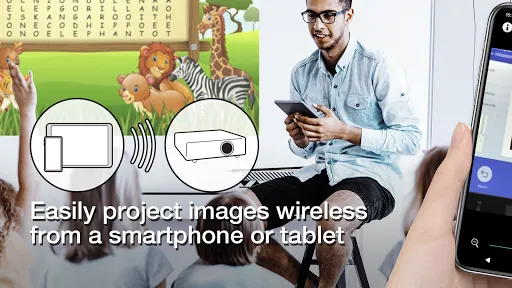
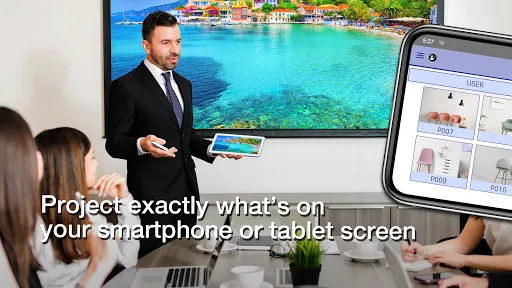
Epson iProjection is a wireless projection app for Android devices & Chromebooks. This app makes it easy to mirror your device's screen, and project PDF files and photos wirelessly to a supported Epson projector.
[Key Features]
1. Mirror your device’s screen and output your device’s audio from the projector.
2. Project photos and PDF files from your device, as well as real-time video from your device's camera.
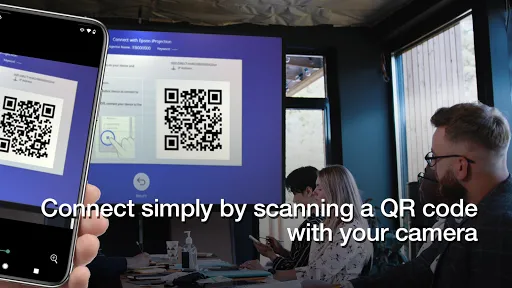
3. Easily connect your device by scanning a projected QR code.
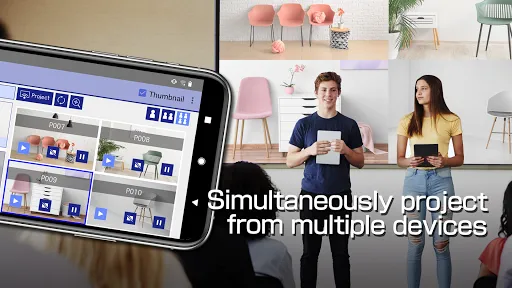
4. Connect up to 50 devices to the projector, display up to four screens simultaneously, and share your projected image with the other connected devices.
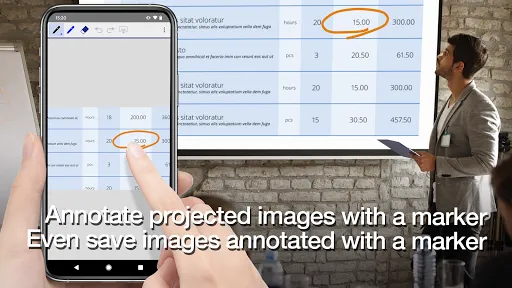
5. Annotate projected images with a pen tool and save the edited images on your device.
6. Control the projector like a remote control.
[Notes]
• For supported projectors, visit https://support.epson.net/projector_appinfo/iprojection/en/. You can also check "Supported Projectors" in the app's support menu.
• The JPG/JPEG/PNG/PDF file types are supported when projecting using "Photos" and "PDF".
• Connecting using a QR code is not supported for Chromebooks.
[About the Mirroring Feature]
• If you are running Android 11 on your Chromebook, the mirroring feature may not work properly on rare occasions. If this occurs, try restarting the mirroring feature, restarting the app, and restarting your Chromebook. Also, consider using Epson iProjection from the Chrome Web Store.
• While mirroring your device’s screen, video and audio may be delayed depending on the device and network specifications. Only unprotected content can be projected.
• Audio output during mirroring is only supported for Android 10 or later, or for Chromebooks running Android 11. On Chromebooks, you can only output sound from apps installed from the Google Play.
[Using the App]
Make sure that the network settings for the projector have been completed.
1. Switch the input source on the projector to "LAN". Network information is displayed.
2. Connect to the same network as the projector from "Settings" > "Wi-Fi" on your Android device or Chromebook*1.
3. Start Epson iProjection and connect to the projector*2.
4. Select and project from "Mirror device screen", "Photos", "PDF", "Web Page", or "Camera".
*1 For Chromebooks, connect the projector using the infrastructure mode or Advanced connection mode. Also, if a DHCP server is being used on the network and the Chromebook's IP address is set to manual, the projector cannot be searched for automatically. Set the Chromebook's IP address to automatic.
*2 If you cannot find the projector you want to connect to using automatic search, select IP Address to specify the IP address.
We welcome any feedback you have that could help us to improve this app. You can contact us through "Developer contact". Please note that we cannot reply to individual inquiries. For inquiries regarding personal information, please contact your regional branch described in the Privacy Statement.
All images are examples and may differ from the actual screens.
[Key Features]
1. Mirror your device’s screen and output your device’s audio from the projector.
2. Project photos and PDF files from your device, as well as real-time video from your device's camera.
3. Easily connect your device by scanning a projected QR code.
4. Connect up to 50 devices to the projector, display up to four screens simultaneously, and share your projected image with the other connected devices.
5. Annotate projected images with a pen tool and save the edited images on your device.
6. Control the projector like a remote control.
[Notes]
• For supported projectors, visit https://support.epson.net/projector_appinfo/iprojection/en/. You can also check "Supported Projectors" in the app's support menu.
• The JPG/JPEG/PNG/PDF file types are supported when projecting using "Photos" and "PDF".
• Connecting using a QR code is not supported for Chromebooks.
[About the Mirroring Feature]
• If you are running Android 11 on your Chromebook, the mirroring feature may not work properly on rare occasions. If this occurs, try restarting the mirroring feature, restarting the app, and restarting your Chromebook. Also, consider using Epson iProjection from the Chrome Web Store.
• While mirroring your device’s screen, video and audio may be delayed depending on the device and network specifications. Only unprotected content can be projected.
• Audio output during mirroring is only supported for Android 10 or later, or for Chromebooks running Android 11. On Chromebooks, you can only output sound from apps installed from the Google Play.
[Using the App]
Make sure that the network settings for the projector have been completed.
1. Switch the input source on the projector to "LAN". Network information is displayed.
2. Connect to the same network as the projector from "Settings" > "Wi-Fi" on your Android device or Chromebook*1.
3. Start Epson iProjection and connect to the projector*2.
4. Select and project from "Mirror device screen", "Photos", "PDF", "Web Page", or "Camera".
*1 For Chromebooks, connect the projector using the infrastructure mode or Advanced connection mode. Also, if a DHCP server is being used on the network and the Chromebook's IP address is set to manual, the projector cannot be searched for automatically. Set the Chromebook's IP address to automatic.
*2 If you cannot find the projector you want to connect to using automatic search, select IP Address to specify the IP address.
We welcome any feedback you have that could help us to improve this app. You can contact us through "Developer contact". Please note that we cannot reply to individual inquiries. For inquiries regarding personal information, please contact your regional branch described in the Privacy Statement.
All images are examples and may differ from the actual screens.
Permainan
Tangkapan skrin Epson iProjection
Versi Lama Epson iProjection



Cadangan Editor


Aplikasi Seperti Epson iProjection


Aplikasi oleh Seiko Epson Corporation

Epson iProjection FAQ
Bagaimana saya boleh memuat turun Epson iProjection dari PGYER APK HUB?
Adakah Epson iProjection di PGYER APK HUB percuma untuk dimuat turun?
Adakah saya perlu akaun untuk memuat turun Epson iProjection dari PGYER APK HUB?
Bagaimana saya boleh melaporkan masalah dengan Epson iProjection di PGYER APK HUB?
Adakah anda dapati ini membantu
Ya
Tidak
Ulasan Pengguna
+ Ulasan
4.8
5
4
3
2
1
C
Cherry
2025-01-30
27
0
I love how Epson iProjection allows me to project my slides directly from my phone. It's a game-changer for my business meetings.
D
Dave
2025-01-06
7
0
The simplicity and efficiency of Epson iProjection are unmatched. It has made my presentations smoother and more professional.
L
Lassie
2025-02-19
13
0
Epson iProjection has transformed the way I conduct workshops. The ability to project from any device is brilliant!
Paling Popular

Disney Speedstorm
Gameloft SE

Royal Match
Dream Games, Ltd.

Angry Birds Journey
Rovio Entertainment Corporation

Bad 2 Bad: Delta
DAWINSTONE GAMES

Super Mario Odyssey
Super Mario Odyssey APK - Explore the World Like Never Before!
Embark on an exhilarating adventure w

Mobile Legends: Bang Bang FT
Công ty cổ phần phát triển công nghệ số Hồng Hà

Crunchyroll: Wolfstride
Crunchyroll, LLC

Car Parking Multiplayer 2
olzhass

Legend of Solgard
Snowprint Studios AB

Soccer Superstar
Real Freestyle Soccer

Clash Royale
Supercell

Hollow Knight: Mobile
ONLİNE GAMES MMMORG

Red Dead redemption 2 Mobile
Tarik EL hamdi

PUBG MOBILE
Level Infinite

Pure Sniper: Gun Shooter Games
Miniclip.com

Hole.io
VOODOO

GunboundM
DargomStudio

Plague Inc.
Ndemic Creations

Relic Bag: Shadow Hunter
Fansipan Limited

Call of Duty: Warzone Mobile
Activision Publishing, Inc.

Delta Force
Level Infinite

War Thunder Mobile
GAIJIN NETWORK LTD

Shadow Fight 2 Special Edition
NEKKI

Once Human
Exptional Global