HarmonyOS Beta Distribution
Signing model for HarmonyOS apps (.hap), the upload and distribution flow on Pgyer, and troubleshooting for common errors.
Pgyer supports uploading, validating, and distributing HarmonyOS apps (.hap files) so testers can download and install them easily. This page covers the HarmonyOS signing model, the Pgyer distribution flow, and troubleshooting for common problems.
Prerequisites
- A Huawei Developer account with access to AppGallery Connect.
- A release certificate (
.p12) created in AppGallery Connect — not a debug certificate. - A Profile (
.p7b) of type Specified Device Release, containing the UDIDs of your test devices. - A
.hapsigned in DevEco Studio using that.p12, producing anxxx-signed.hapfile.
HarmonyOS Apps and the Signing Model
HarmonyOS is Huawei's multi-device operating system, covering phones, tablets, wearables, and more. Native HarmonyOS apps are written in ArkTS and packaged as .hap, signed via Huawei's official certificate flow:
.hapis HarmonyOS's installable app bundle (analogous to Android's.apk);- Every
.hapmust be signed before it can install on a HarmonyOS device; - The signing certificate is a
.p12issued through your Huawei Developer account.
A complete signature has three parts, and all three must match for a .hap to install correctly:
| Object Being Signed | Signed By |
|---|---|
The .hap itself | The developer, locally |
The .p7b (Profile) | The developer, either locally or through AppGallery Connect |
The manifest.json5 file | Pgyer automatically, once you upload the .p12 |
Distributing a HarmonyOS App on Pgyer
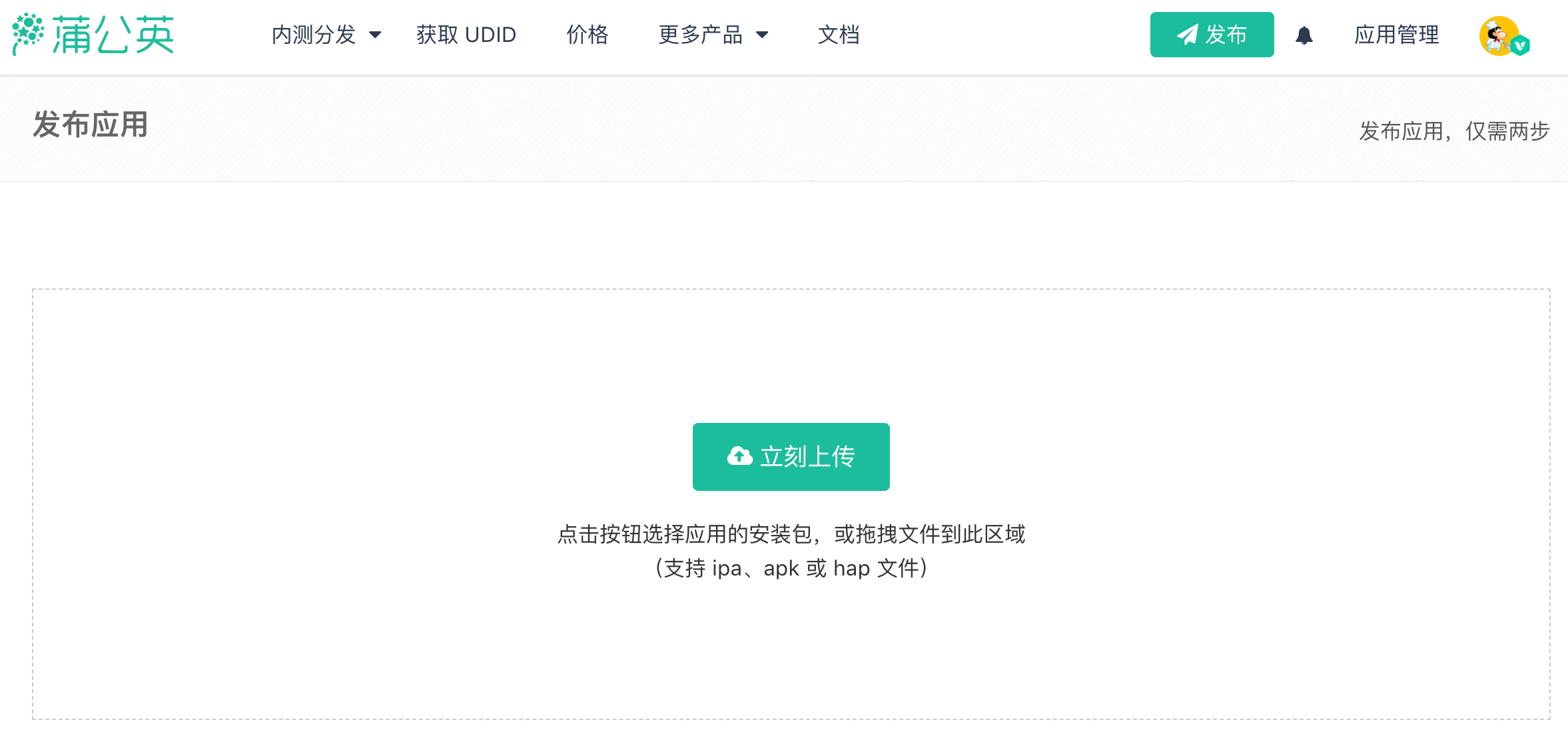
Upload the Signed .hap
Sign the .hap locally with your developer certificate — the file you upload to Pgyer must already be signed. Before uploading, confirm that:
- The
.haphas been signed with a signing tool such as Huawei's DevEco Studio. A correctly signed output is namedXXXX-signed.hap; see Huawei: Build and Package an App; - The
.p12used to sign the.hapis identical to the.p12you'll upload to Pgyer; - Only HarmonyOS
.hapfiles are supported at the moment.
Fill in App Information (Optional)
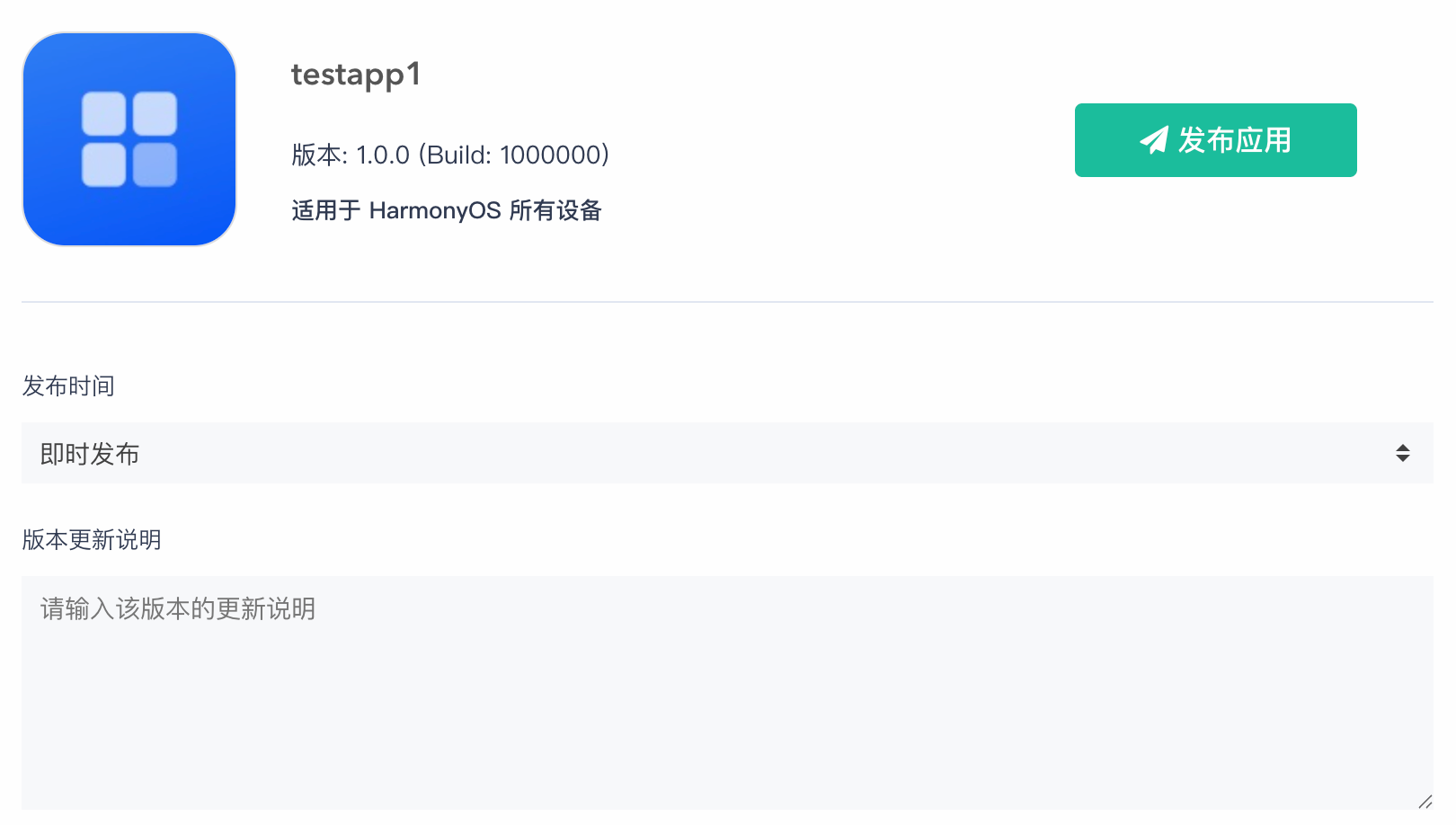
To help testers identify the app, you can optionally fill in:
- App name and version number (Pgyer parses and displays these automatically)
- Release notes
- Screenshots
- Beta notes
These fields show up on the app's distribution page.
Upload the .p12 and Set the Password
In the HarmonyOS beta flow, Pgyer generates and signs the manifest.json5 to produce valid install metadata, so you need to provide the .p12 certificate and password that match the .hap:
- Download the
.p12from Certificate, App ID and Profile in AppGallery Connect; - The certificate must be the same one used to sign the
.hap, otherwise install will fail; - Pgyer does not sign the
.hapitself — the.p12is used only to signmanifest.json5.

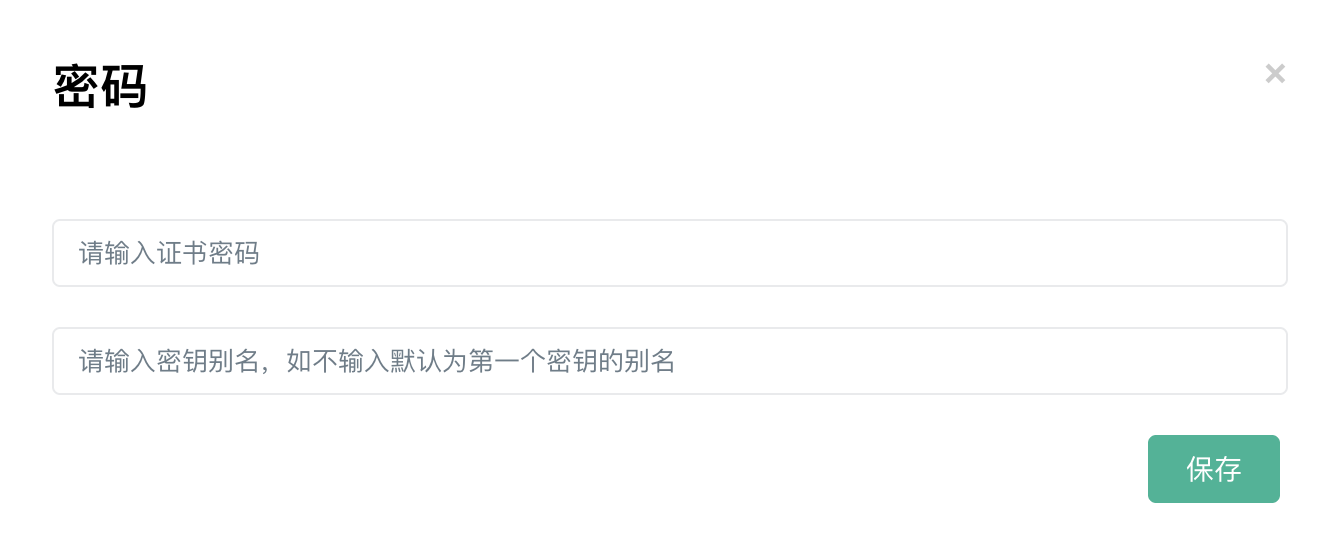
In Dashboard, select the app, open the Certificates page from the top bar, and choose Upload P12 certificate (Manage P12 certificates once one is uploaded); the reminder on the Overview page can also open the upload dialog. When uploading the P12, enter the certificate password and key alias in the popup. The alias defaults to the first one; if the P12 contains multiple keys, enter the alias actually used when packaging the app.
Why the .p12 Is Required
This is one of Huawei's verification checks: HarmonyOS devices validate the manifest.json5 signature at install time to ensure the app comes from a trusted source. See Huawei's documentation for details.
Share the Download Link
Once the upload finishes, Pgyer generates a download link and QR code:
- Install via the link or by scanning the QR code;
- Shareable through WeChat, email, DingTalk, and other channels;
- Installation is only supported from a browser on a pure HarmonyOS NEXT device.
Because .hap installs are constrained by system security policy, using Huawei's built-in browser to open the download page is recommended.
Common Questions
The .hap Uploads but Fails to Install, Saying "XXXXXX" Cannot Be Installed
This usually points to a signing or configuration issue. Walk through the checklist below.
Signing
-
The
.hapmust be signed, not unsigned. For theentrymodule, DevEco Studio produces bothxxx-signed.hapandxxx-unsigned.hapunder/entry/build/default/outputs/default— use the former: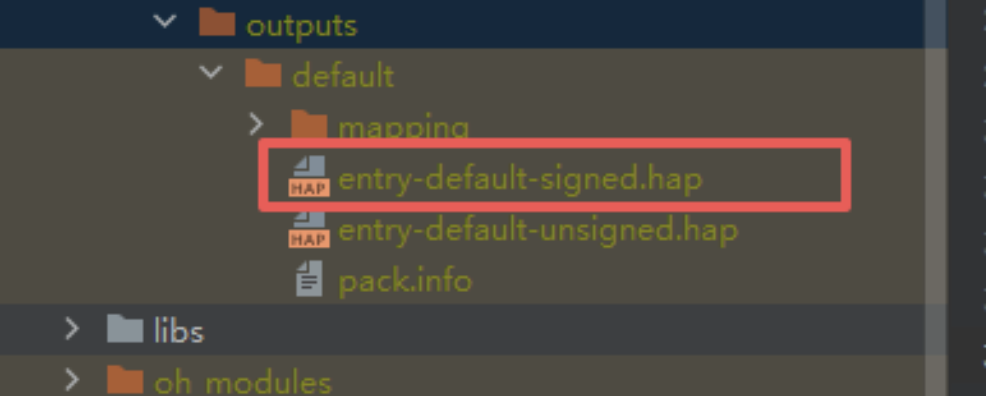
-
The
.p12used to sign the.hapmust be the same one uploaded to Pgyer; -
After uploading the
.p12, double-check the password (the platform surfaces a message if it's wrong); -
The
.p12must be a release certificate, not a debug certificate. How to apply for a release certificate
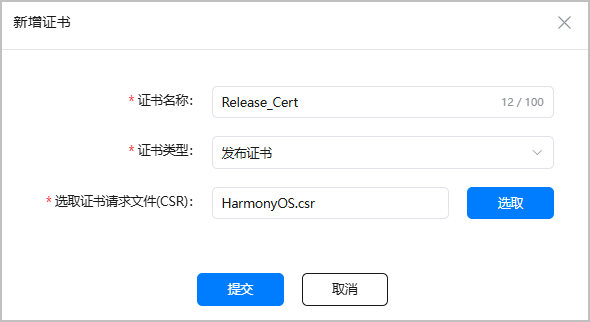
Profile (.p7b)
-
The Profile used to sign the
.hapmust be of type Specified Device Release. If not, the console reportsProfile type errorafter upload. See Apply for a Specified Device Release Profile: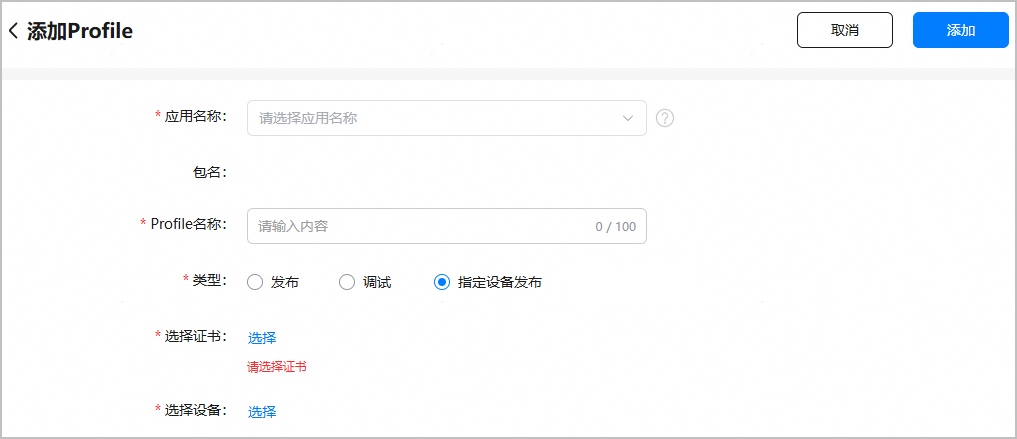
-
The Profile must include the UDID of the test device. How to collect a UDID
Digging Deeper
If none of the above explains the failure, look up the error code shown at install time in the Huawei error code reference, or consult the Error Reference section below.
Can One Link Serve Multiple Testers?
Yes. A download link can be shared with any number of testers, and the platform provides install analytics and device identification.
Does Pgyer Modify the .hap File?
No. Pgyer does not modify the .hap itself — it only signs manifest.json5 so the app can install correctly.
Is API Upload Supported?
Yes. Pgyer exposes an API for uploading app files. For HarmonyOS apps, after the first upload you'll also need to call the API to upload the .p12. See the API docs.
Can .hsp Files Be Uploaded?
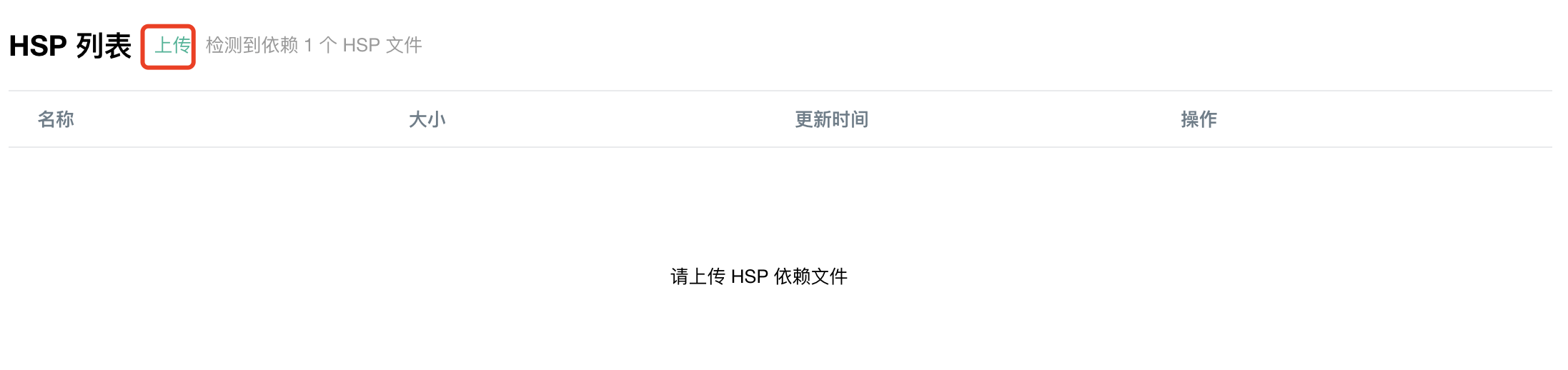
Yes. Upload the .hap first, then look for the .hsp upload entry in App Management.
- The entry only appears for apps that need
.hspdependencies, and shows how many are required; - Only internal
.hspdependencies are supported — external ones are not.
Unsupported Scenarios
.appfiles;- Uploading multiple
.hapfiles under the same app; - HarmonyOS Atomic Services. If the icon disappears right after download, it's likely an atomic service, which is not supported at the moment.
Error Reference
Common Error Codes
| Code | Meaning |
|---|---|
| 10003 | The uploaded P12 key doesn't match the .hap signature — start by checking that the .p12 was uploaded correctly |
| 10021 | The device UDID isn't in the .p7b's scope, or the certificate that signed the .p7b differs from the one that signed the app |
| 17700015 | Inconsistent config across multiple HAPs — try removing debuggable: false from buildOption and retry |
| 17700018 | A required module is missing; check whether the needed .hsp dependency was uploaded |
| 17700019 | The .p12 signing key doesn't match the installer's — re-upload the P12 with the correct password and key alias |
| 17700054 | Most likely an ACL permission issue; request the permission, then recreate the Profile and regenerate the .p12 |
| 17700073 | A package with the same name already exists on the phone, or a previous install wasn't fully removed |
Other Common Messages
| Message | Meaning |
|---|---|
| Wrong password when uploading the P12 | Enter the password you set when generating the .p12. See docs |
| "App has expired" after tapping the icon | The certificate or the test authorization has expired |
| App crashes after tapping the icon | Certificate problem, or a bug in the app itself |
| Download page says the developer has not finished the HarmonyOS installation setup | The developer has not uploaded the P12 yet; upload it on the Certificates page in Dashboard. See docs |
| Platform reports a certificate mismatch | The .p12 public key doesn't match the .hap signing certificate's public key — re-upload the .p12, or check whether it contains multiple keys. See docs |
| Profile type error | The Profile type must be Specified Device Release. See docs |
Further Reading
Version Number vs. Build Number
What the version and build numbers mean on iOS and Android, how Pgyer displays them, and how to switch which build number shows up.
iOS Signing Certificate Types
Apple Developer account types, the differences between Ad Hoc, In-House, and App Store signing, and how each is labeled in Pgyer.