Upload via the Jenkins Plugin
Use the official Pgyer Jenkins plugin to upload apk, ipa and hap packages to Pgyer from Pipeline or Freestyle jobs, and get the download page and QR code.
The official Pgyer Jenkins plugin, Upload to PGYER, uploads Android (.apk), iOS (.ipa) and HarmonyOS (.hap) packages to Pgyer after your build, waits until the build is published, and shows its download page and QR code on the build page. It works in both Pipeline and Freestyle jobs: the package is uploaded from the node that built it, and the API key is kept in Jenkins credentials and never appears in the build log.
To compare the API, CLI, CI/CD plugins and other ways to upload, see Automated Uploads and CI/CD Integration.
The plugin requires Jenkins 2.479.3 or newer. If you use version 2.x of the plugin, read Upgrading from 2.x before upgrading.
Overview
Install the plugin: search for Upload to PGYER in the Jenkins plugin manager and install it.
Add your API key: store your Pgyer API key as a Jenkins "Secret text" credential.
Add the upload step: call pgyerUpload in Pipeline jobs, or add the "Upload to PGYER" build step to Freestyle jobs.
Check the result: find the download page and QR code in the build log and on the build page.
Install the plugin
- In Jenkins, go to Manage Jenkins → Plugins → Available plugins.
- Search for
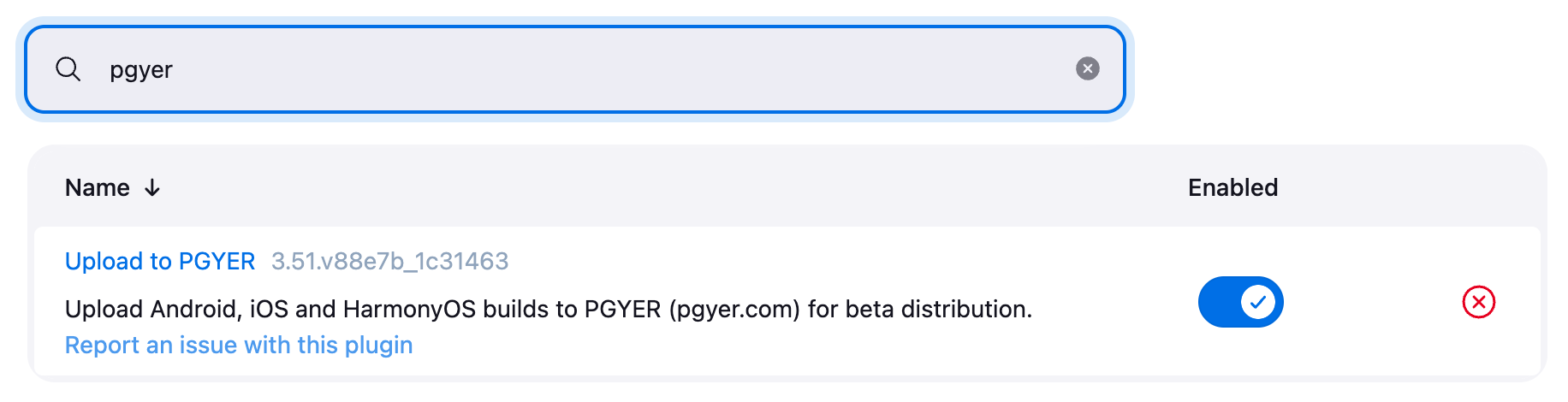
pgyer, select Upload to PGYER and click Install. - When the installation finishes, search for
pgyerunder Installed plugins to check that the plugin is enabled:
If Jenkins can't reach the plugin site, install the plugin manually:
- Download the latest
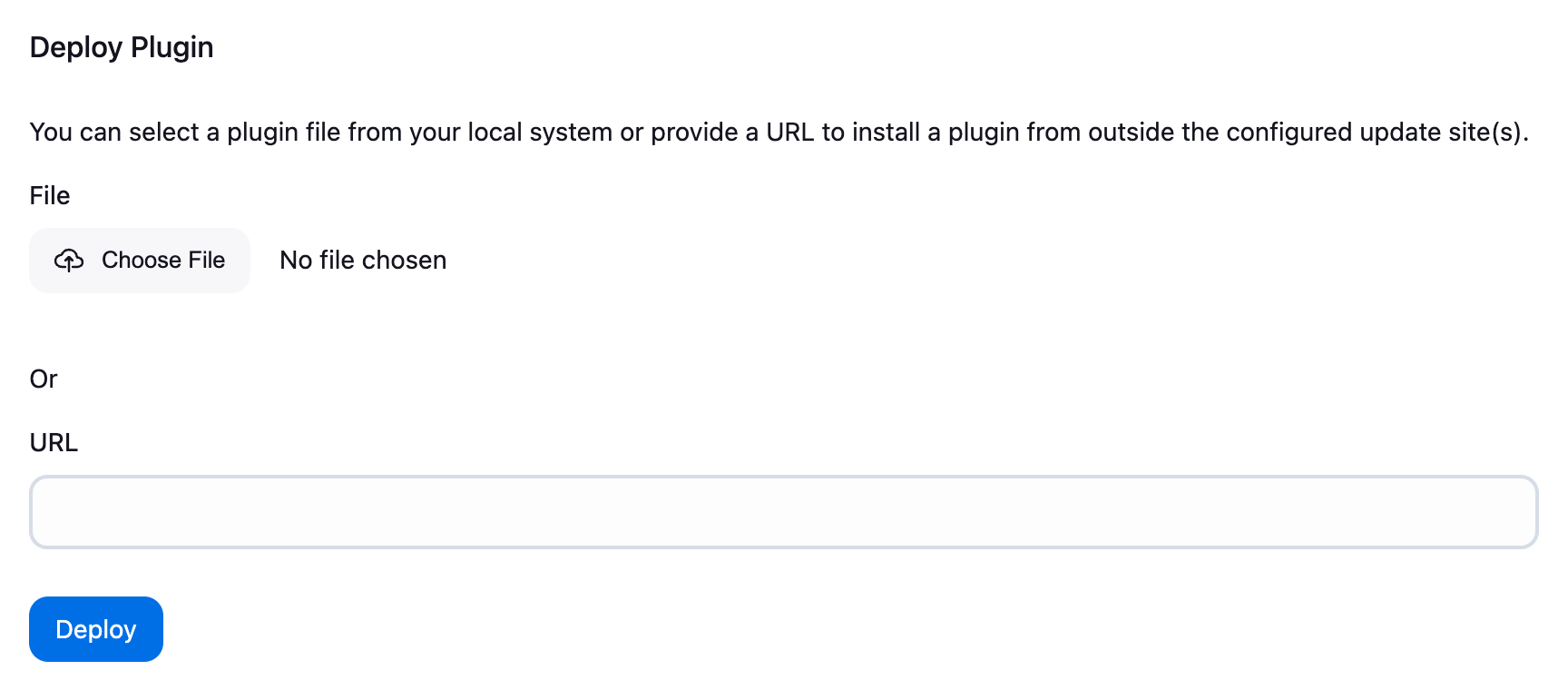
upload-pgyer.hpifrom the releases page. - Go to Manage Jenkins → Plugins → Advanced settings, choose the downloaded file under Deploy Plugin and click Deploy.
Add your API key
- Sign in to Pgyer and copy your API key from the API information page.
- In Jenkins, go to Manage Jenkins → Credentials → System → Global credentials and click Add Credentials.
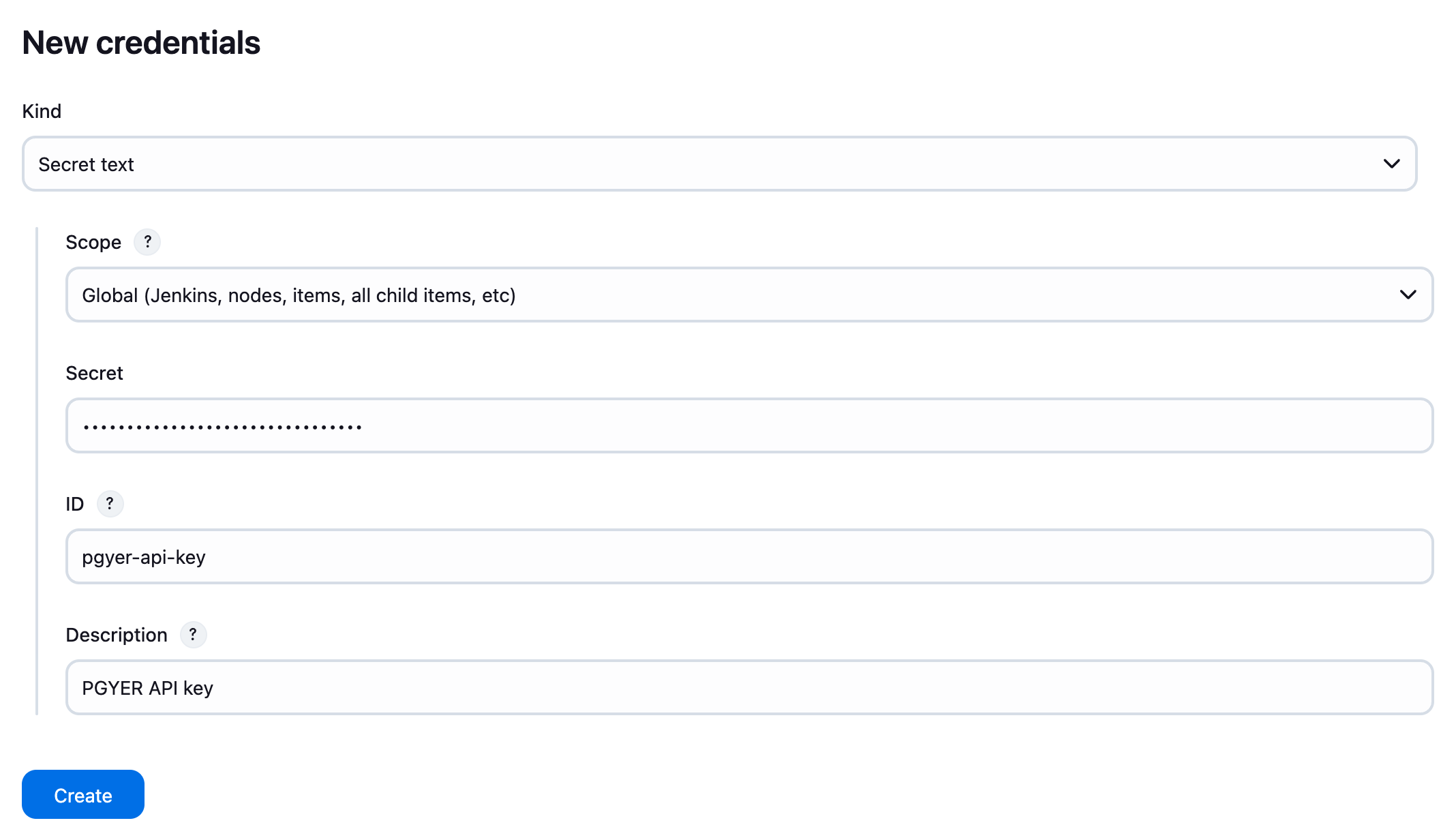
- Set Kind to Secret text, paste the API key into Secret, set ID to
pgyer-api-key(the examples on this page use this ID) and click Create.
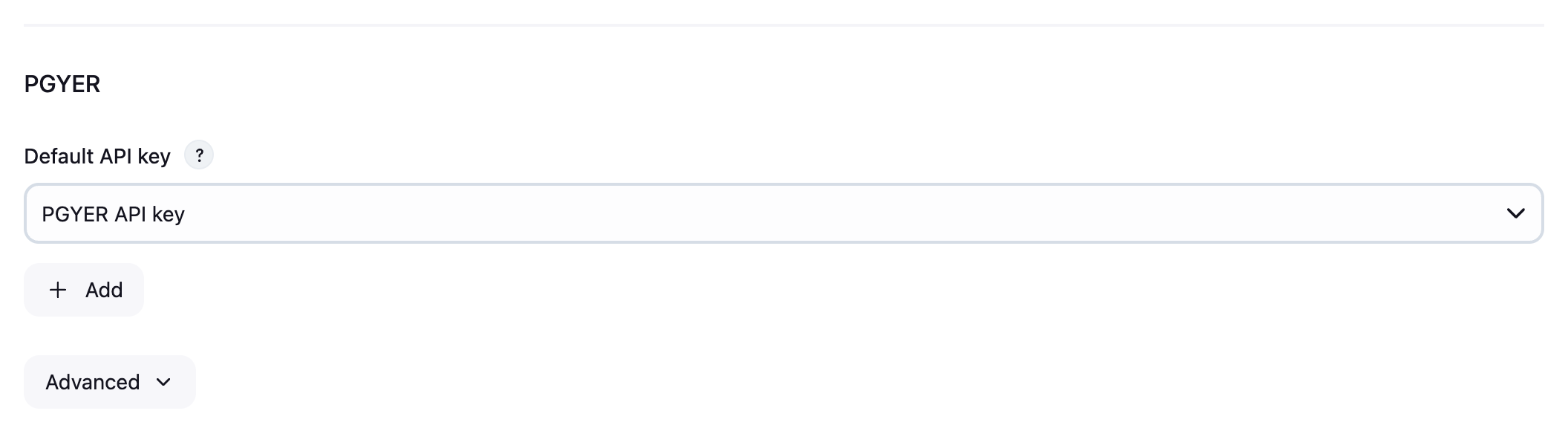
If most of your jobs use the same API key, set it as the default under Manage Jenkins → System → PGYER, so jobs don't have to choose a credential:
Don't put the API key directly in a Jenkinsfile or job configuration. Credentials are stored encrypted and masked in build logs.
Pipeline jobs
Call pgyerUpload after the build, for example:
pipeline {
    agent any
    stages {
        stage('Build') {
            steps {
                sh './gradlew assembleRelease'
            }
        }
        stage('Distribute to PGYER') {
            steps {
                script {
                    def app = pgyerUpload file: 'app/build/outputs/apk/release/*.apk',
                                          credentialsId: 'pgyer-api-key',
                                          updateDescription: "Build #${env.BUILD_NUMBER}"
                    echo "Download page: ${app.appPgyerURL}"
                }
            }
        }
    }
}
If you write the script in Jenkins itself, paste it into Pipeline → Script in the job configuration:
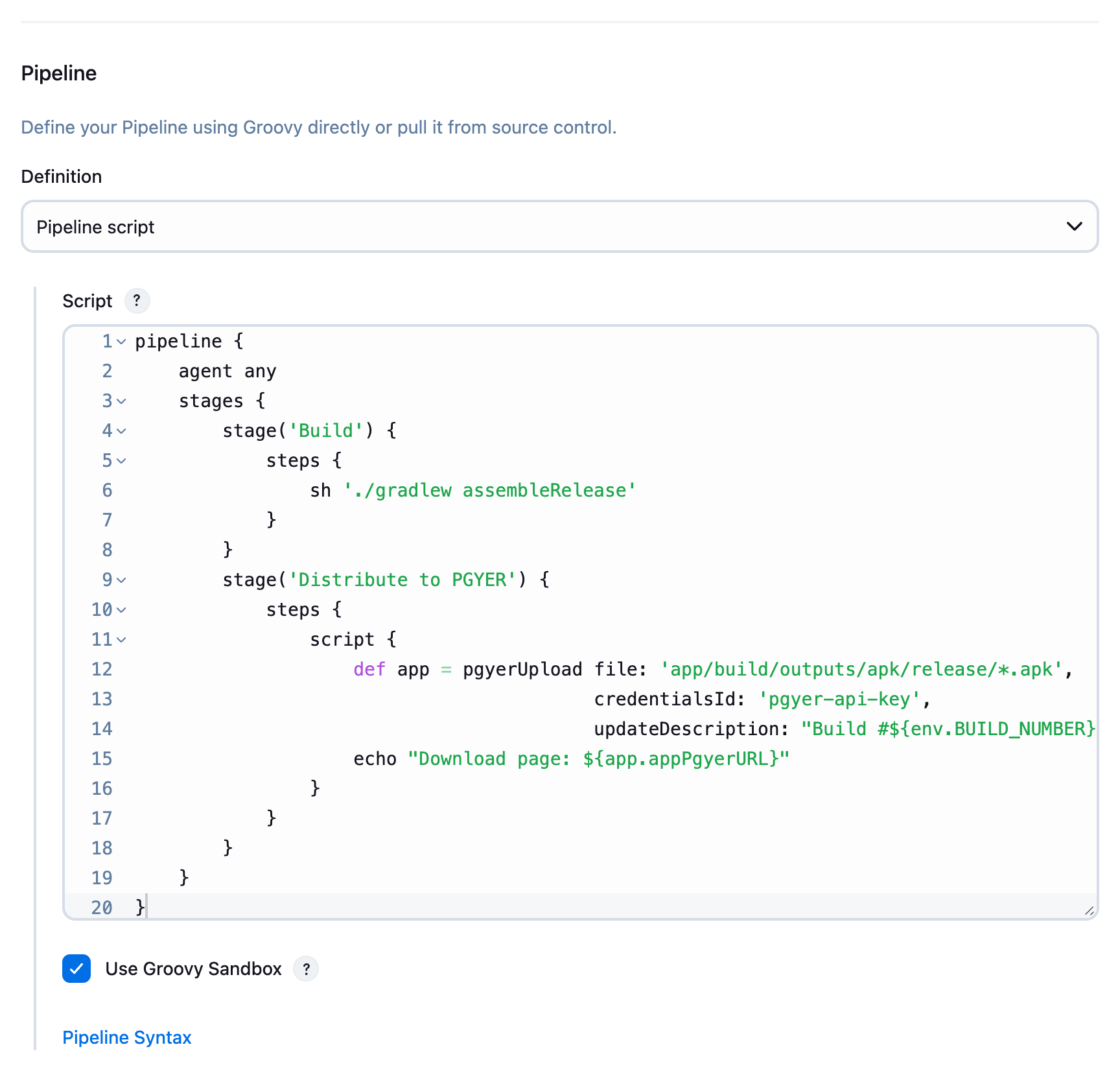
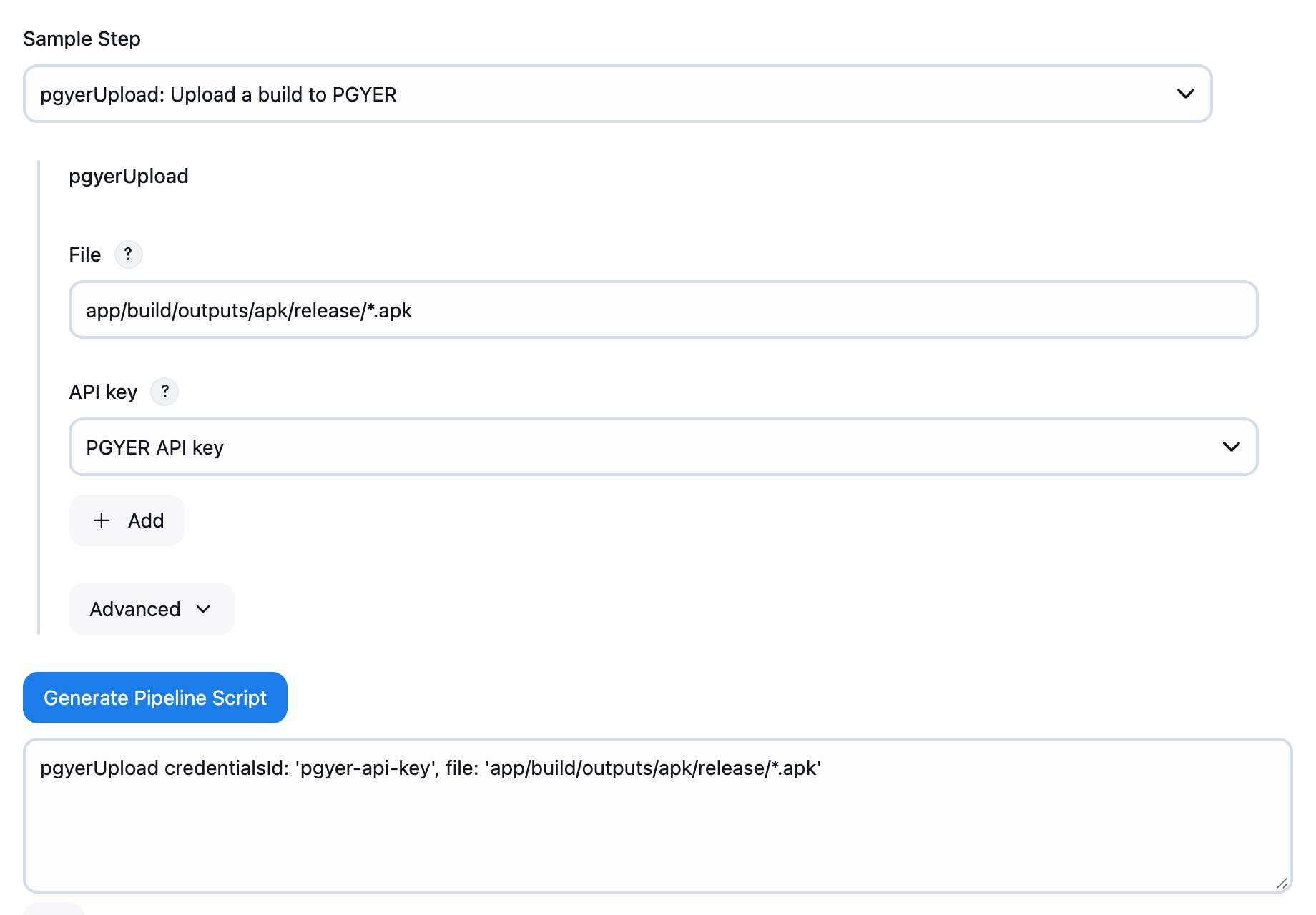
You can also generate the call with the built-in Pipeline Syntax page: click Pipeline Syntax on the job page, choose pgyerUpload: Upload a build to PGYER as the Sample Step, fill in the fields and click Generate Pipeline Script.
Parameters
| Parameter | Description |
|---|---|
file | The file to upload, as an Ant-style pattern relative to the workspace, such as app/build/outputs/apk/release/*.apk. When empty, any .apk, .ipa or .hap file in the workspace is used. If several files match, the most recently modified one is uploaded. |
credentialsId | ID of the credential holding the API key. When empty, the PGYER_API_KEY environment variable is used, then the default API key in the system settings. |
buildType | android, ios or harmony. Detected from the file extension; only needed when the file isn't an .apk, .ipa or .hap. |
installType | Who can install the build: 1 public, 2 password, 3 invitation only. Keeps the current setting of the app when empty. |
password | Install password, used with installType: '2'. |
description | Description of the app. |
updateDescription | What changed in this build. |
channelShortcut | Short URL of the download channel to publish to. |
installStartDate, installEndDate | Limit installs to a date range, as yyyy-MM-dd. Set both or neither. |
oversea | true to upload through overseas acceleration, false for mainland China. Chosen by IP address when empty. |
processingTimeout | Seconds to wait for Pgyer to publish the build after the upload. Default 600. |
Return value
pgyerUpload returns a map with everything Pgyer reports about the published build. The most useful fields are:
| Field | Description |
|---|---|
appPgyerURL | Download page, such as https://www.pgyer.com/xxxx |
buildQRCodeURL | URL of the QR code image for the download page |
buildName, buildVersion, buildBuildVersion | App name, version and build number |
buildKey, buildShortcutUrl | Build key and short URL |
Pass them to later steps, for example to post the download link to a team chat. For all fields, see the upload API.
Providing the API key through an environment variable
If you manage credentials with withCredentials, put the API key in the PGYER_API_KEY environment variable and pgyerUpload reads it:
withCredentials([string(credentialsId: 'pgyer-api-key', variable: 'PGYER_API_KEY')]) {
    pgyerUpload file: 'build/*.ipa'
}
Freestyle jobs
-
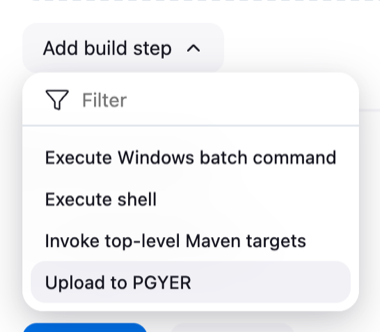
Open the job configuration, click Add build step under Build Steps and choose Upload to PGYER:
-
Choose the credential you added under API key, keep Directory as
${WORKSPACE}, and set File to the path of your package, such asapp/build/outputs/apk/release/*.apk: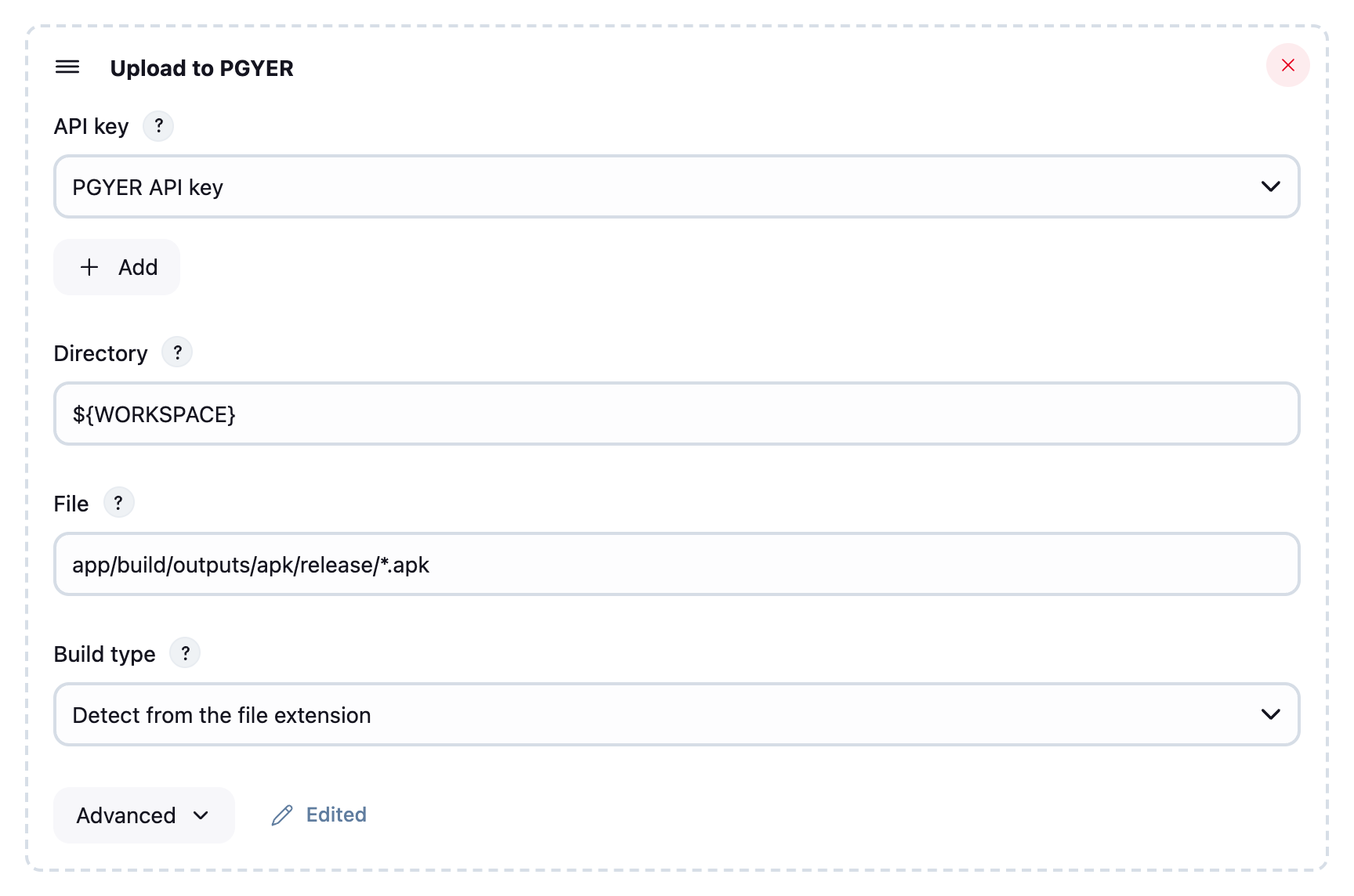
-
To set the install type, update description and more, click Advanced. Then save the job.
Upload to PGYER is also available as a post-build action. As a post-build action it doesn't upload when the build failed.
The Advanced options match the Pipeline parameters:
| Option | Parameter |
|---|---|
| Install type | installType |
| Install password | password |
| Description | description |
| Update description | updateDescription; environment variables such as ${BUILD_NUMBER} are expanded |
| Channel shortcut | channelShortcut |
| Install start date, Install end date | installStartDate, installEndDate |
Using the result in later steps
After the upload, the plugin sets environment variables for the following build steps, such as $appPgyerURL (download page), $buildQRCodeURL (QR code image), $buildShortcutUrl and $buildVersion. The names match the fields of the return value.
For example, add an "Execute shell" step after the upload:
echo "Download page: $appPgyerURL"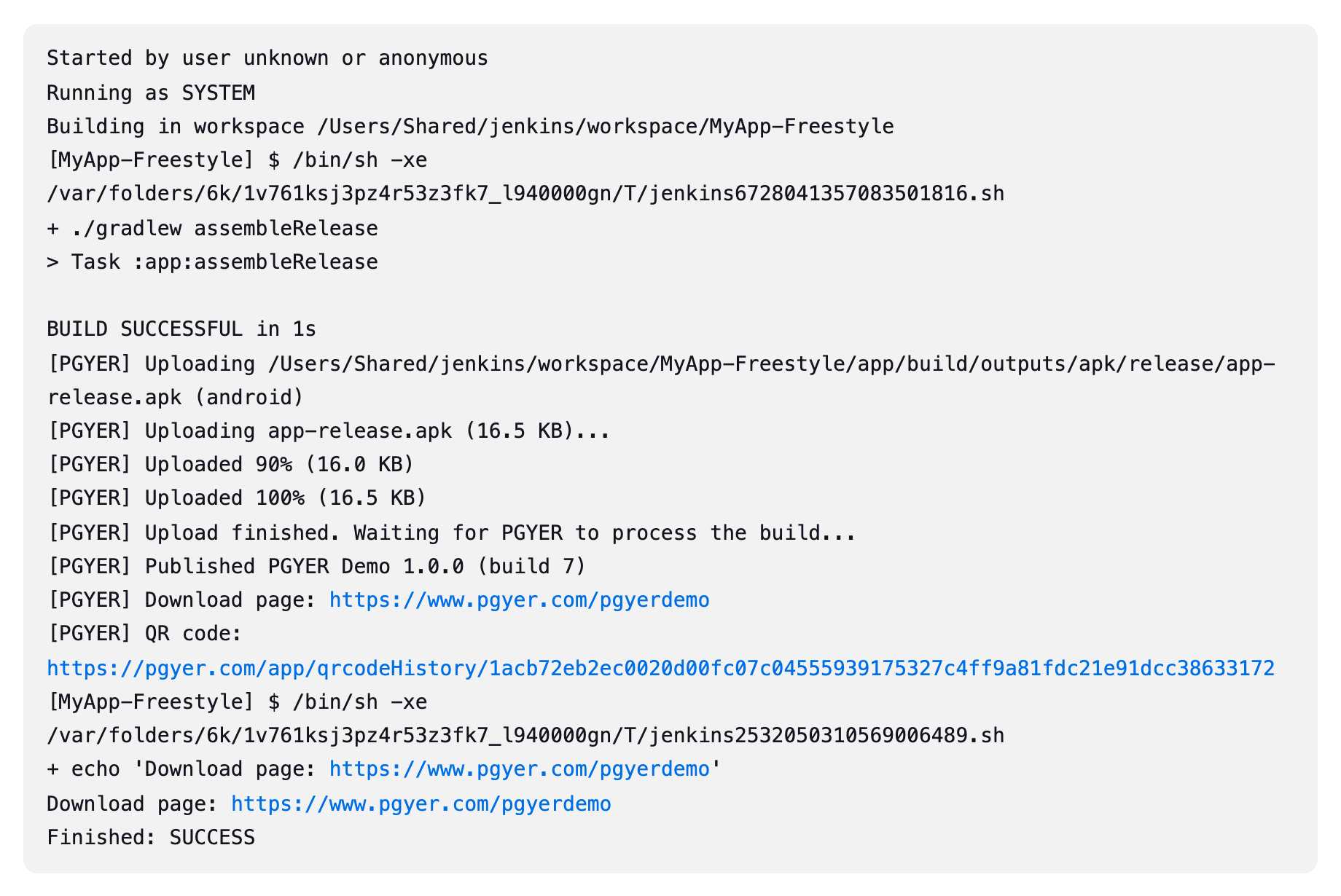
To skip the upload, add a job parameter isUploadPgyer and set it to false.
Check the result
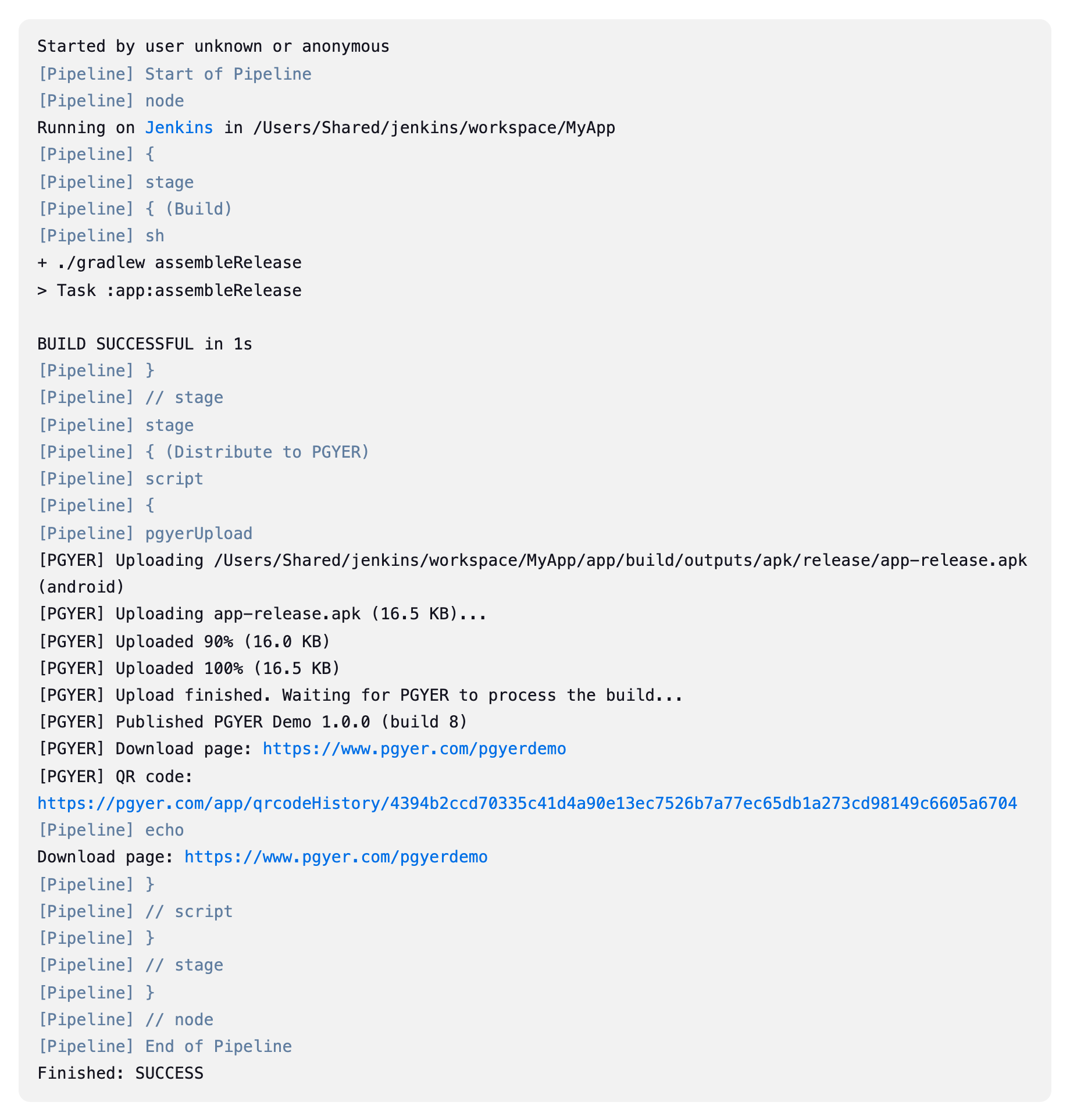
The build log shows the upload progress, the published build and its download page:
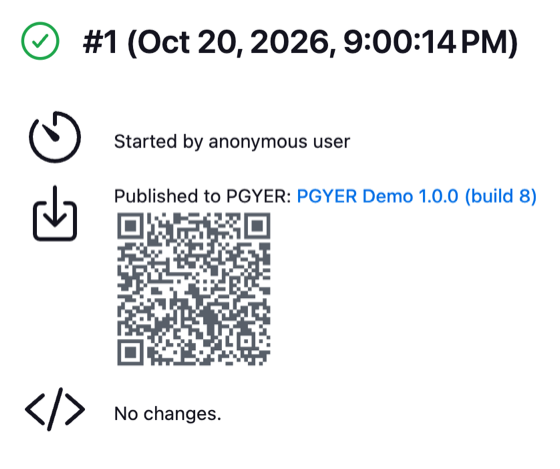
The build page shows the download link and QR code, so testers can scan it to install:
The download page opened by the QR code:

Upgrading from 2.x
Jobs configured with version 2.x keep working after the upgrade without changes, including the environment variables they set and the isUploadPgyer and uploadPgyerTimeout variables they read. What changes:
- Jobs that build on agents can upload: the plugin reads and uploads the package on the agent.
- The plugin waits up to 10 minutes for Pgyer to publish the build, so "upload success but synchronizing data fail" no longer happens.
- HarmonyOS
.happackages are supported, and the build type is detected from the file extension. - Downloads keep the original file name of the package.
- Pipeline jobs should use the
pgyerUploadstep.
An API key typed into a 2.x job still works, but is marked as deprecated:
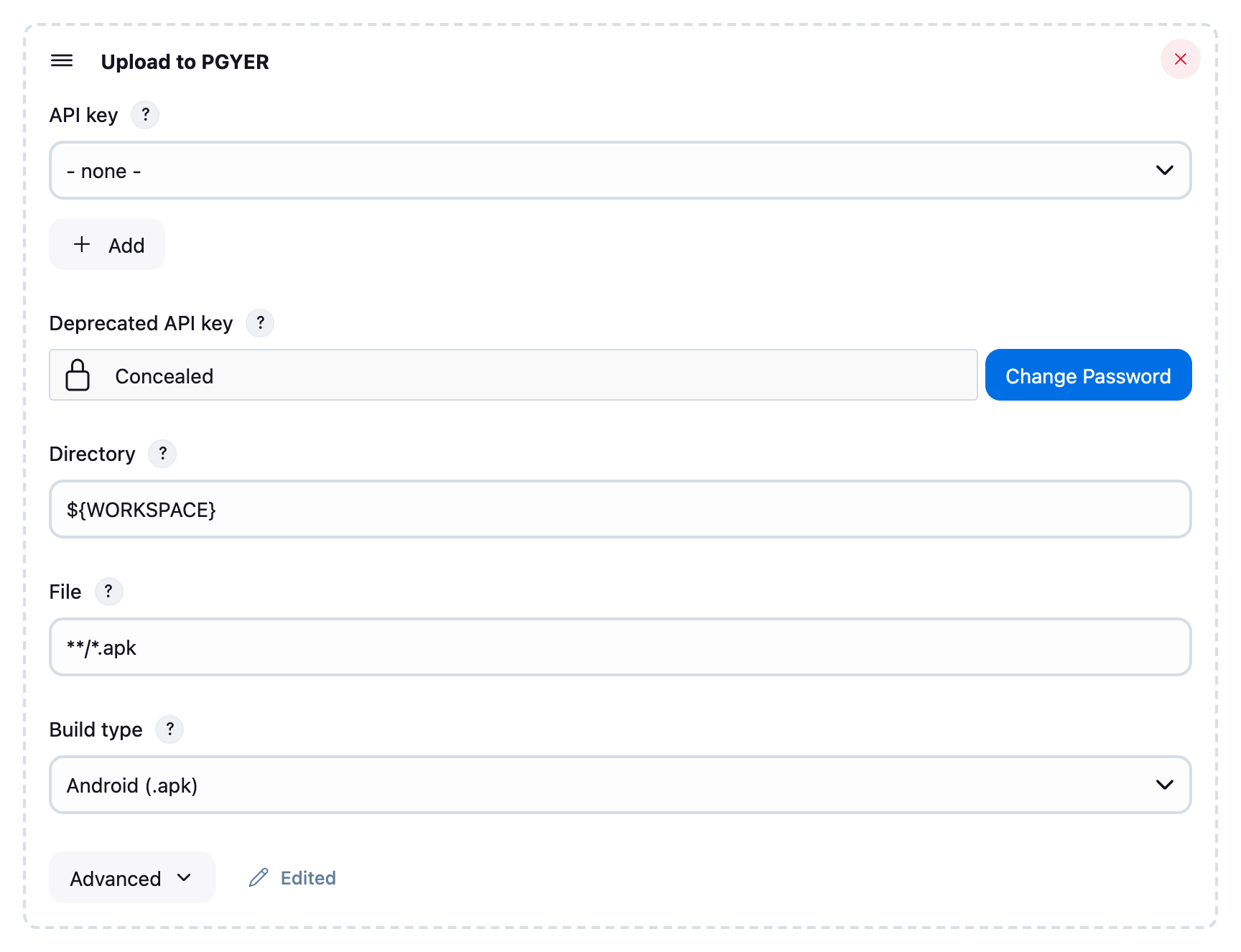
Create a credential as described in Add your API key, choose it under API key, then click Change Password to clear the deprecated key and save the job.
FAQ
The upload fails with an error code
| Error | What to do |
|---|---|
1001, 1002 | The API key is missing or wrong. Check it on the API information page. |
1003 | Sub-accounts can't use the API. Use the API key of the main account. |
1019 | Complete real-name verification before uploading. |
1020 | Uploading is disabled for this account. Contact Pgyer customer service. |
1022 | Your storage is full or the file is too large. Free up space or upgrade your plan. |
| PGYER is still processing the build after 600 seconds | The upload finished, but publishing took longer than processingTimeout. The build may still appear in your app list; raise the timeout if this happens often. |
| None of the PGYER API servers could be reached | The node running the build can't reach www.pgyer.com. Check its network and Manage Jenkins → System → HTTP Proxy Configuration. |
Uploading through a proxy
The plugin uses the HTTP proxy configured in Jenkins, and tries Pgyer's backup domains when www.pgyer.com can't be reached.
If the proxy requires a user name and password, Java doesn't send them for HTTPS connections by default. Start the JVM of the node running the build with -Djdk.http.auth.tunneling.disabledSchemes="".
Feedback
The plugin is open source. Report issues and suggestions on GitHub.
Automated App Uploads and CI/CD Integration
Choose the fast upload API, CLI, CI/CD plugins, MCP, or Agent Skill to integrate Pgyer with build scripts, release systems, and AI assistants.
Upload via Fastlane
Install and configure Pgyer's Fastlane plugin to upload the Android, iOS, and HarmonyOS builds Fastlane produces.