Android SDK 2.x Integration Guide
Integration steps for Pgyer Android SDK 2.x, covering SDK import, shake-to-feedback, and update checking.
The Pgyer SDK is no longer maintained. For new integrations, use the Pgyer API directly. This page is kept for reference on legacy versions.
This page explains how to integrate Pgyer Android SDK 2.x into your Android project, and how to enable shake-to-feedback and update checking.
Some features in 3.0.0 are not backward compatible. For new integrations, follow the Android SDK 3.0.0 Integration Guide.
Prerequisites
- An Android project (Eclipse or Android Studio).
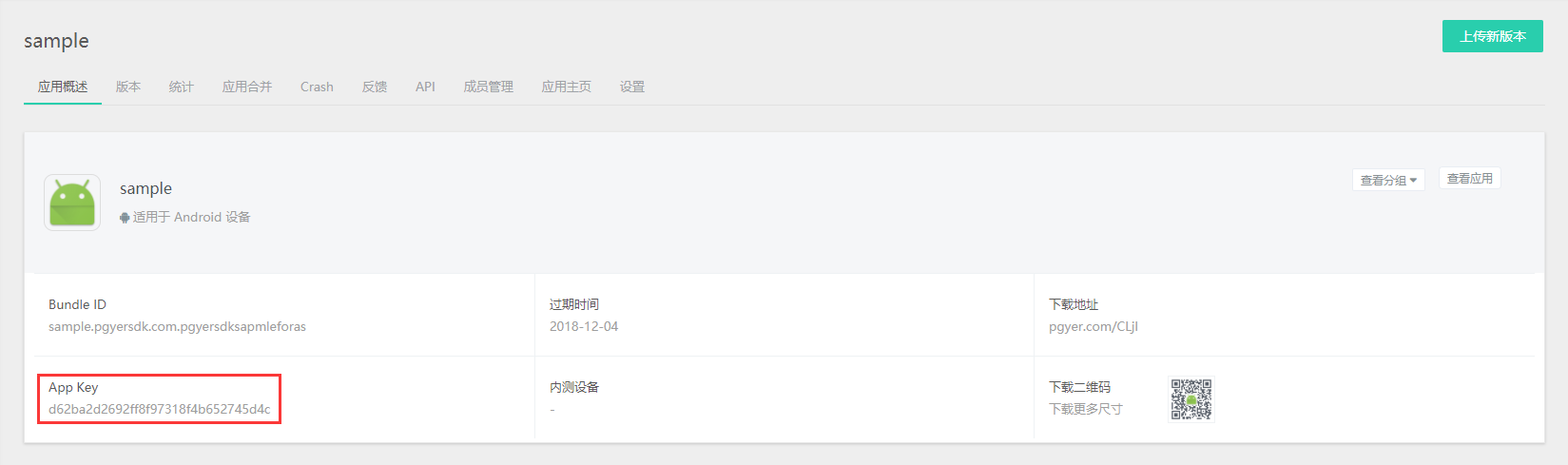
- An app registered on Pgyer with an App Key.
You can find the App Key on the App management page:
Import the SDK
Android Studio
Add the repository in the project-level build.gradle:
allprojects {
    repositories {
        jcenter()
        maven { url "https://raw.githubusercontent.com/Pgyer/mvn_repo_pgyer/master" }
    }
}
Add the dependency in the module-level build.gradle:
dependencies {
    compile 'com.pgyersdk:sdk:2.8.1'
}
Sample project: PgyerSdkDemoForAndroidStudio.
Android Studio users can also integrate via the same jar approach as Eclipse.
Eclipse
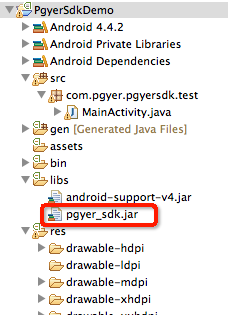
Copy the jar into the project's libs directory.
Configure AndroidManifest
<uses-permission android:name="android.permission.ACCESS_NETWORK_STATE" />
<uses-permission android:name="android.permission.INTERNET" />
<uses-permission android:name="android.permission.READ_PHONE_STATE" />
<uses-permission android:name="android.permission.ACCESS_WIFI_STATE" />
<uses-permission android:name="android.permission.WRITE_EXTERNAL_STORAGE" />
<uses-permission android:name="android.permission.RECORD_AUDIO" />
<uses-permission android:name="android.permission.GET_TASKS"/>

<uses-permission android:name="android.permission.READ_LOGS" />

<application
    android:allowBackup="true"
    android:icon="@drawable/ic_launcher"
    android:label="@string/app_name"
    android:theme="@style/AppTheme" >

    <activity android:name="com.pgyersdk.activity.FeedbackActivity"/>

    <meta-data
        android:name="PGYER_APPID"
        android:value="4b6e8877dfcc2462bedb37dcf66b6d87" >
    </meta-data>
</application>
PGYER_APPID is the App Key. On Android 6.0 and above, you must request read/write permissions at runtime.
Shake-to-Feedback
Integrate in an Activity
import com.pgyersdk.feedback.PgyFeedbackShakeManager;
import com.pgyersdk.update.UpdateManagerListener;

public class MainActivity extends Activity {

    @Override
    protected void onCreate(Bundle savedInstanceState) {
        super.onCreate(savedInstanceState);
        setContentView(R.layout.activity_main);
    }

    @Override
    protected void onResume() {
        super.onResume();

        // Customize shake sensitivity; default 950, smaller value = more sensitive
        PgyFeedbackShakeManager.setShakingThreshold(1000);

        // Dialog presentation (portrait only)
        PgyFeedbackShakeManager.register(MainActivity.this);

        // Activity presentation (register FeedbackActivity in AndroidManifest.xml)
        // Enable immersive mode; default false
        // FeedbackActivity.setBarImmersive(true);
        PgyFeedbackShakeManager.register(MainActivity.this, false);
    }

    @Override
    protected void onPause() {
        super.onPause();
        PgyFeedbackShakeManager.unregister();
    }
}
Show the Feedback View From a Button
// Dialog
PgyFeedback.getInstance().showDialog(MainActivity.this);

// Activity (register FeedbackActivity in AndroidManifest.xml)
// FeedbackActivity.setBarImmersive(true);
PgyFeedback.getInstance().showActivity(MainActivity.this);
When using the Activity presentation you must also call PgyFeedbackShakeManager.unregister() in onPause():
@Override
protected void onPause() {
    super.onPause();
    PgyFeedbackShakeManager.unregister();
}
Customize the Appearance
Feedback Dialog:
PgyerDialog.setDialogTitleBackgroundColor("#ff0000");
PgyerDialog.setDialogTitleTextColor("#ffffff");
Feedback Activity:
// Top navigation and bottom bar color
FeedbackActivity.setBarBackgroundColor("#ff0000");

// Button pressed color
FeedbackActivity.setBarButtonPressedColor("#ff0000");

// Color picker background
FeedbackActivity.setColorPickerBackgroundColor("#ff0000");
Custom Feedback Data
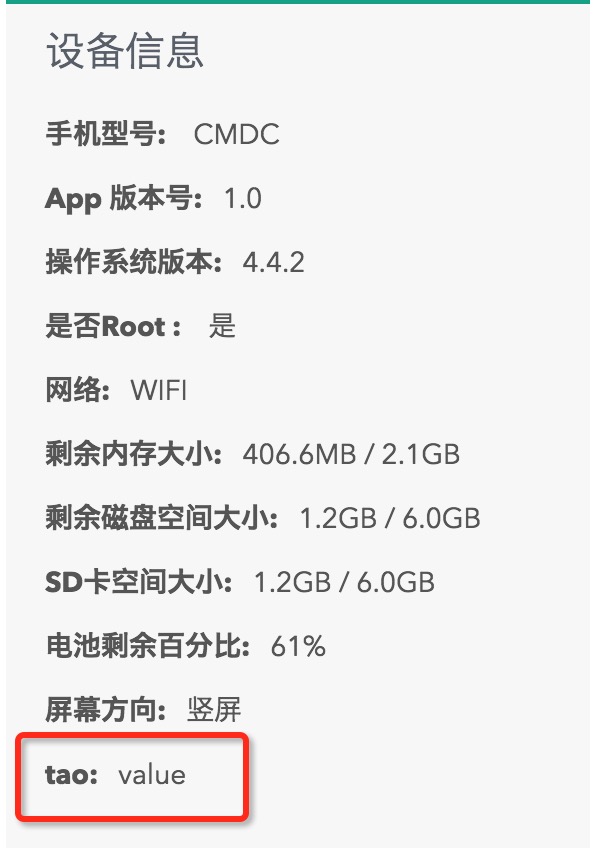
You can attach any number of custom fields:
PgyFeedback.getInstance().setMoreParam("tao", "value");The data shows up on the feedback detail page:
Check for Updates
Default Dialog
import com.pgyersdk.update.PgyUpdateManager;

PgyUpdateManager.setIsForced(true); // true = force update; false = not forced (default)
PgyUpdateManager.register(this);
Update Check With Callback
import com.pgyersdk.javabean.AppBean;
import com.pgyersdk.update.PgyUpdateManager;
import com.pgyersdk.update.UpdateManagerListener;

PgyUpdateManager.register(MainActivity.this,
    new UpdateManagerListener() {

        @Override
        public void onUpdateAvailable(final String result) {
            // Wrap the new version info into an AppBean
            final AppBean appBean = getAppBeanFromString(result);
            new AlertDialog.Builder(MainActivity.this)
                .setTitle("Update")
                .setMessage("")
                .setNegativeButton("OK",
                    new DialogInterface.OnClickListener() {
                        @Override
                        public void onClick(DialogInterface dialog, int which) {
                            startDownloadTask(
                                MainActivity.this,
                                appBean.getDownloadURL());
                        }
                    }).show();
        }

        @Override
        public void onNoUpdateAvailable() {
        }
    });
Handle the Download Yourself
If you implement the download yourself, call the following once it finishes:
UpdateManagerListener.updateLocalBuildNumber(result);Unregister
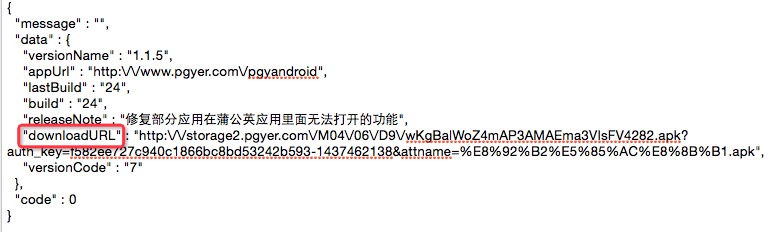
PgyUpdateManager.unregister();Format of result:
ProGuard
-libraryjars libs/pgyer_sdk_x.x.jar
-dontwarn com.pgyersdk.**
-keep class com.pgyersdk.** { *; }