iOS SDK Integration Guide
Integration steps for the Pgyer iOS SDK, covering Framework setup, SDK initialization, user feedback, and update checking.
The Pgyer SDK is no longer maintained. For new integrations, use the Pgyer API directly. This page is kept for projects that already integrated the SDK.
This page explains how to integrate the Pgyer iOS SDK into your Xcode project and enable user feedback and update checking.
Prerequisites
- Xcode 7.0 or above (earlier versions may fail to build due to missing bitcode support).
- An iOS app registered on Pgyer with an App Key.
- If you use CocoaPods, your project already has a
Podfile.
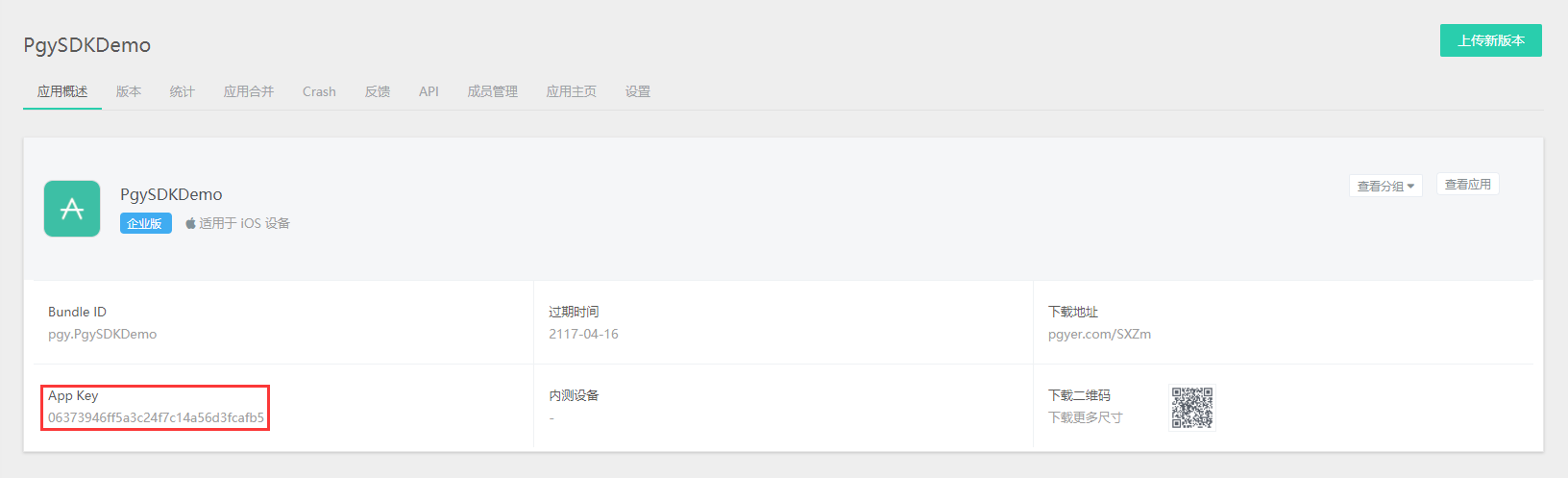
You can find the App Key on the App management page:
The App Store does not allow apps that contain self-update functionality. The main Pgyer SDK has removed auto-update, but to ensure a smooth review we recommend removing the Pgyer SDK before submitting to the App Store.
Add Frameworks
Option 1: CocoaPods
pod 'Pgyer'
pod 'PgyUpdate'
Option 2: Manual
Download the Pgyer SDK (includes analytics, user feedback, and update checking).
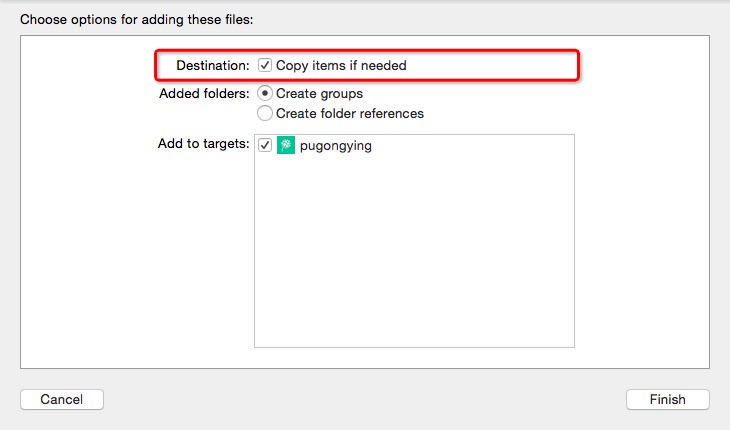
Drag PgySDK.framework and PgyUpdate.framework into your Xcode project and check Copy items if needed.
Under Build Phases → Link Binary With Libraries, add the following system frameworks:
CoreTelephony.framework
OpenGLES.framework
CoreMotion.framework
AudioToolbox.framework
AvFoundation.framework
SystemConfiguration.framework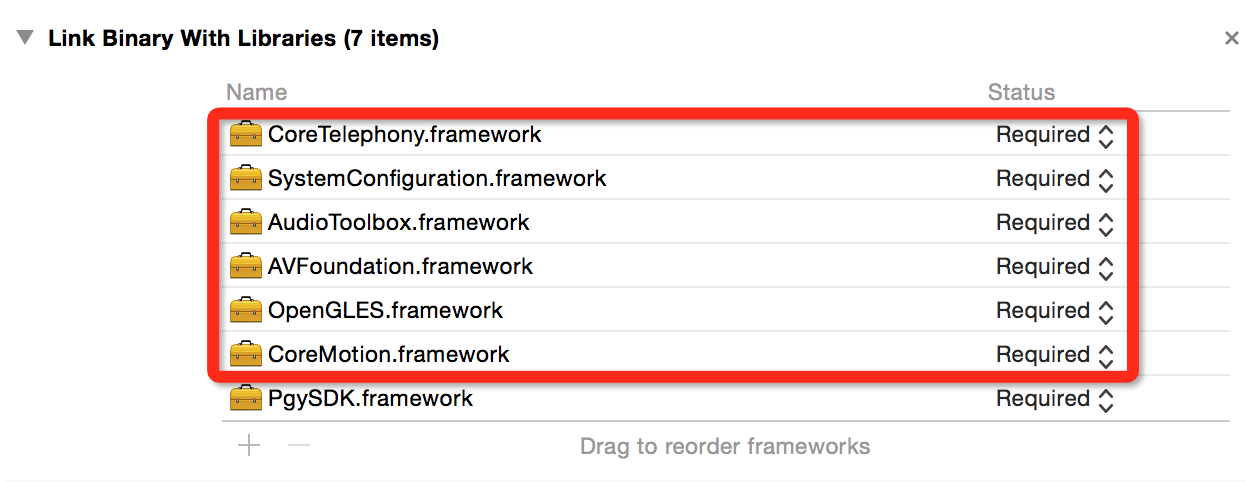
Initialize the SDK
Import the headers in AppDelegate.m:
#import <PgySDK/PgyManager.h>
#import <PgyUpdate/PgyUpdateManager.h>
Then call these in application:didFinishLaunchingWithOptions::
// Start the base SDK
[[PgyManager sharedPgyManager] startManagerWithAppId:@"PGY_APP_ID"];
// Start the update-check SDK
[[PgyUpdateManager sharedPgyManager] startManagerWithAppId:@"PGY_APP_ID"];
PGY_APP_ID is the App Key you obtained from Pgyer.
User Feedback
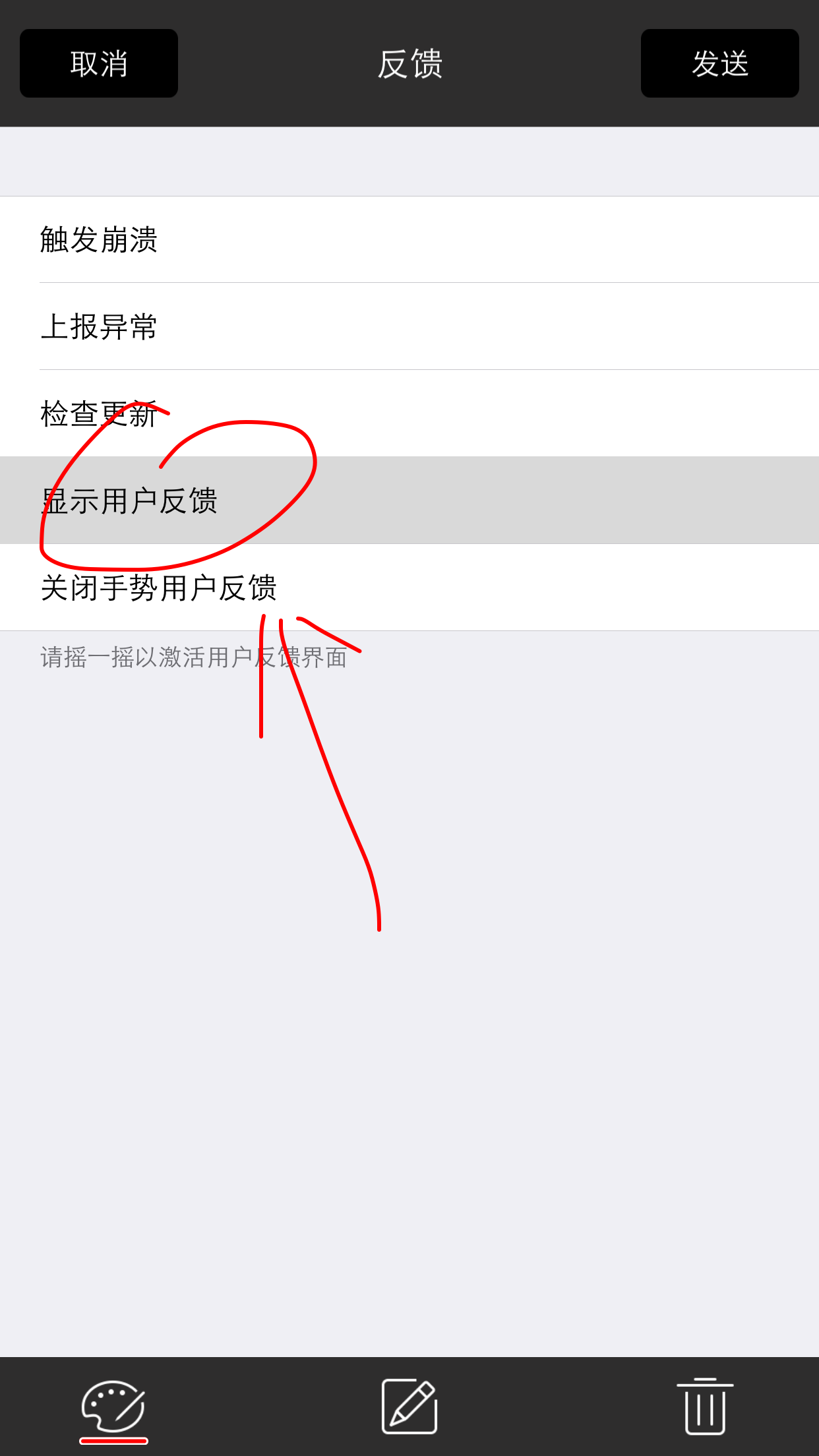
User feedback is enabled by default once the SDK starts. It can be triggered by shake or three-finger swipe up.
Options
| Capability | Method |
|---|---|
| Disable feedback | setEnableFeedback:NO |
| Trigger via three-finger pan | setFeedbackActiveType:kPGYFeedbackActiveTypeThreeFingersPan |
| Trigger via shake (default) | setFeedbackActiveType:kPGYFeedbackActiveTypeShake |
| Customize theme color (default 0x37C5A1) | setThemeColor: |
| Customize shake sensitivity (default 2.3; smaller value = more sensitive) | setShakingThreshold: |
| Open the feedback UI from code | showFeedbackView |
All customizations above must be called before startManagerWithAppId:.
Example:
[[PgyManager sharedPgyManager] setEnableFeedback:NO];
[[PgyManager sharedPgyManager] setFeedbackActiveType:kPGYFeedbackActiveTypeThreeFingersPan];
[[PgyManager sharedPgyManager] setThemeColor:[UIColor blackColor]];
[[PgyManager sharedPgyManager] setShakingThreshold:3.0];
[[PgyManager sharedPgyManager] showFeedbackView];
Check for Updates
When enabled, uploading a new version to Pgyer triggers an update prompt in older versions, guiding users to update.
Import the header in any file that checks for updates:
#import <PgyUpdate/PgyUpdateManager.h>Invoke the update check:
[[PgyUpdateManager sharedPgyManager] startManagerWithAppId:@"PGY_APP_ID"];   // Replace with your app's App Key
[[PgyUpdateManager sharedPgyManager] checkUpdate];
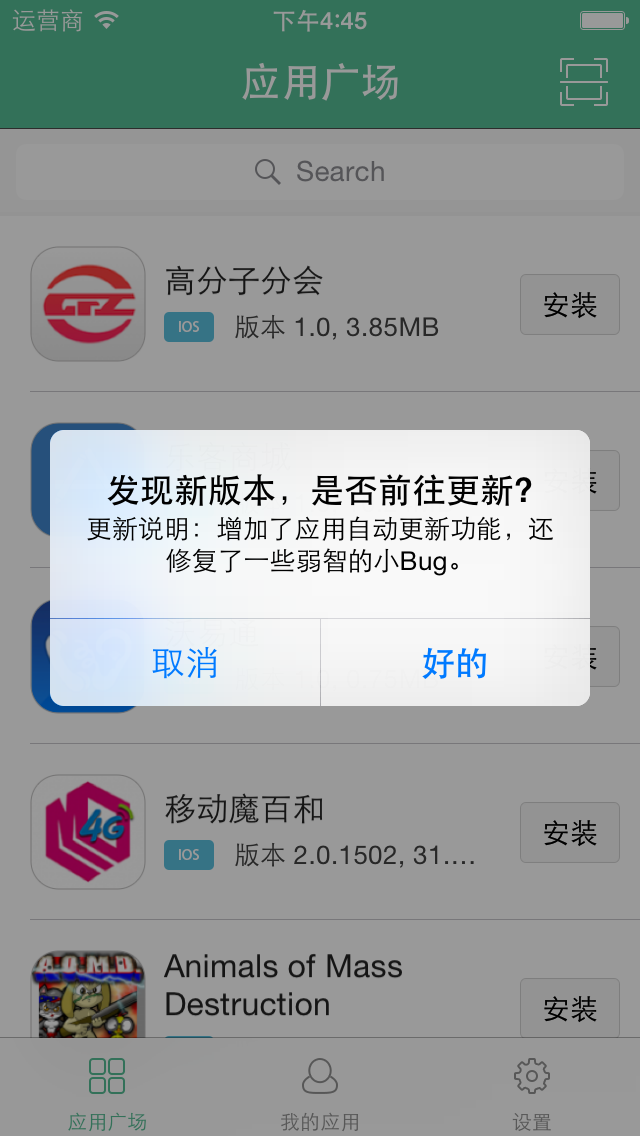
When a new version is available, the user is prompted to update:
Custom Update UI
Use the callback to handle the update logic yourself:
[[PgyUpdateManager sharedPgyManager] checkUpdateWithDelegete:self selector:@selector(updateMethod:)];updateMethod is the callback. When a new version is available it receives a dictionary of version info; otherwise nil. Jump to the download page:
[[UIApplication sharedApplication] openURL:[NSURL URLWithString:response[@"downloadURL"]]];