Huawei / Honor Installation Notes
Common issues when installing non-AppGallery APKs on Huawei and Honor devices — Pure Mode blocking, missing browser download prompts, and unknown-sources permission — with fixes for each.
When installing an APK from outside Huawei AppGallery on a Huawei or Honor device, the system's security policies and browser prompts can get in the way. This page covers the common cases; read it alongside Android installation steps.
Pure Mode Blocking the Install
With Pure Mode turned on, the system blocks apps that do not come from Huawei AppGallery — the install screen may not even show an install button.
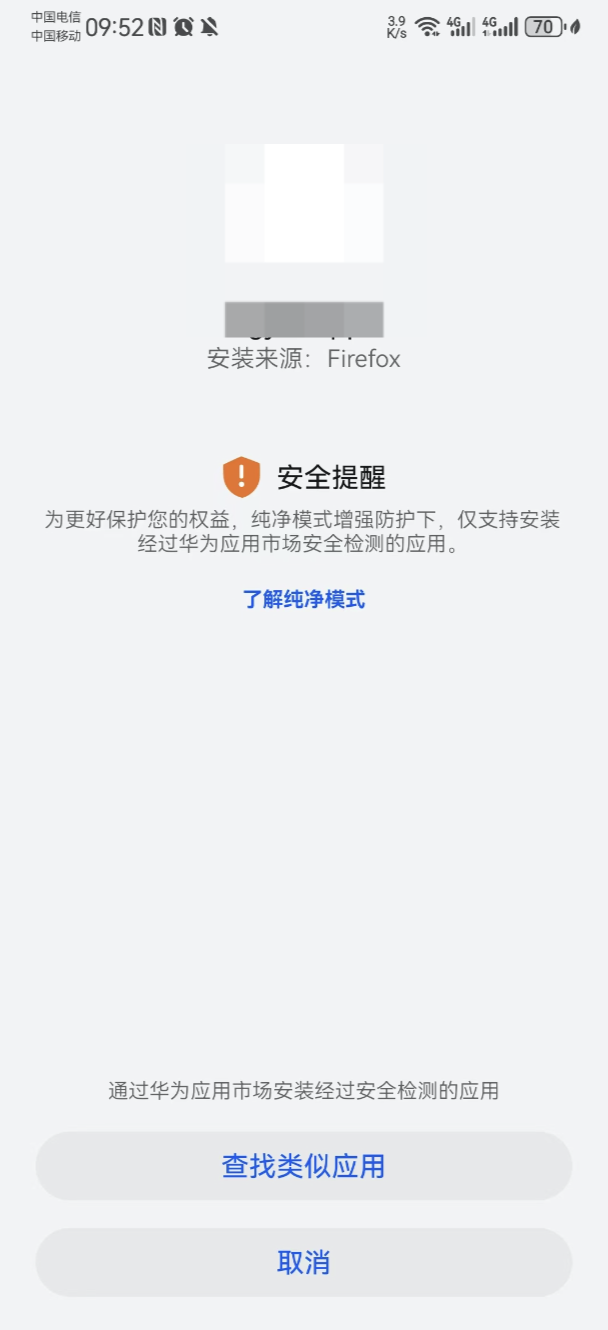
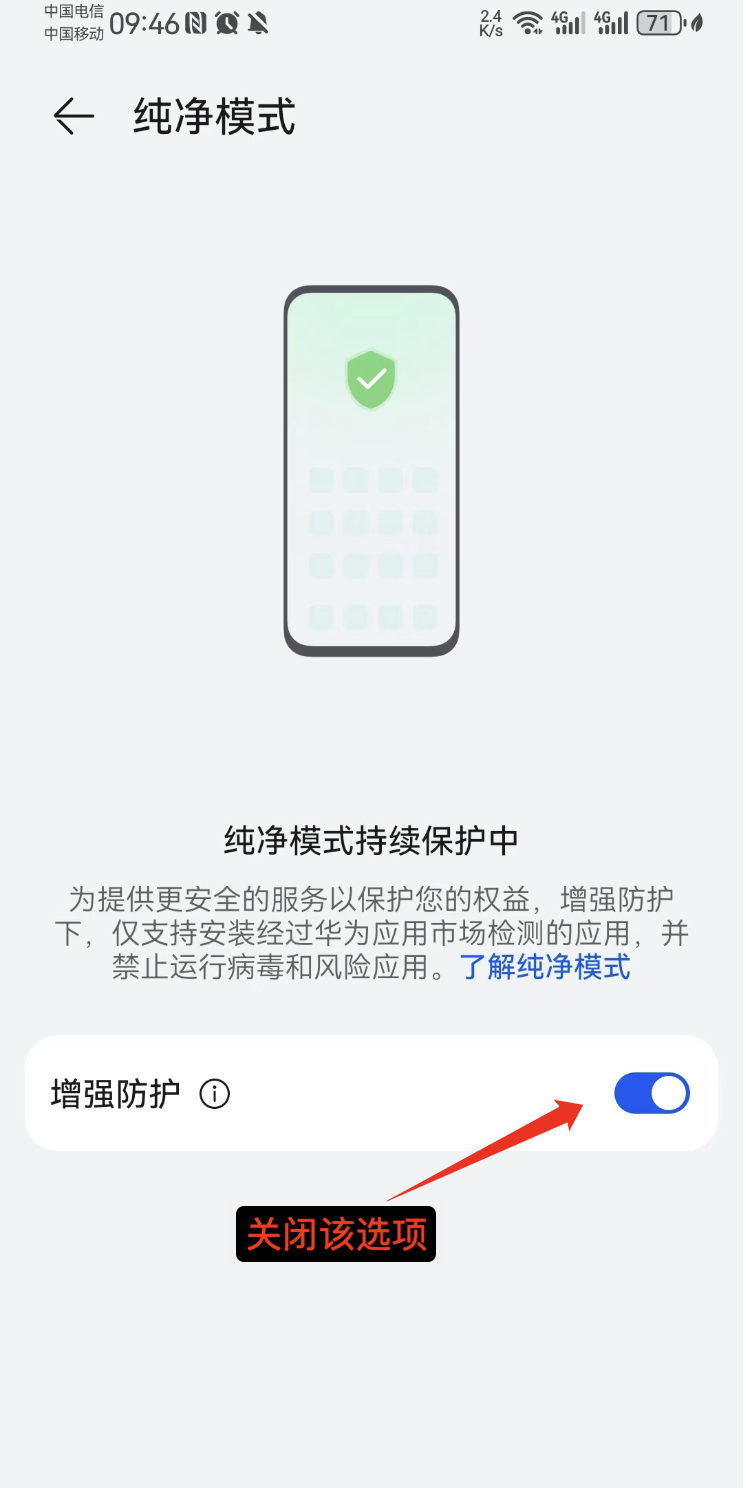
Turn off Pure Mode and reopen the APK to install:
- Open the Settings app;
- Go to System & updates > Pure Mode;
- Turn off Enhanced protection.
You can also search for Pure Mode directly in Settings.
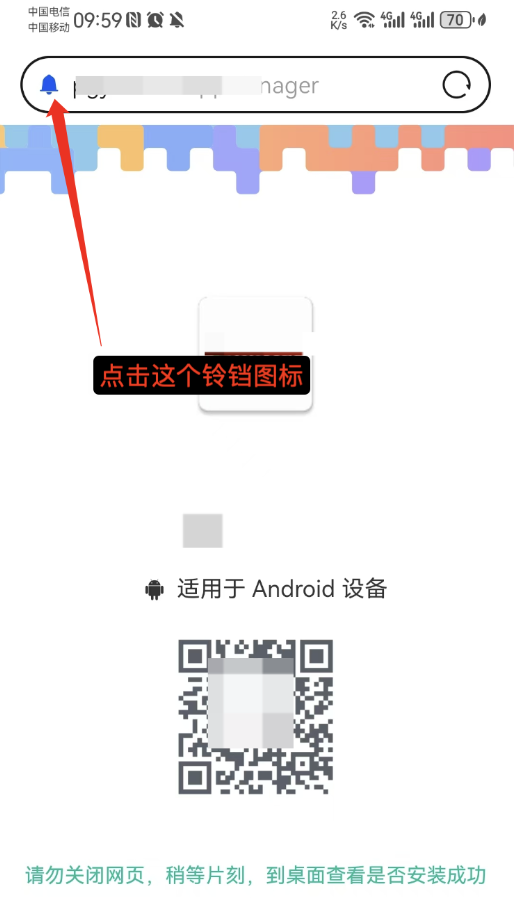
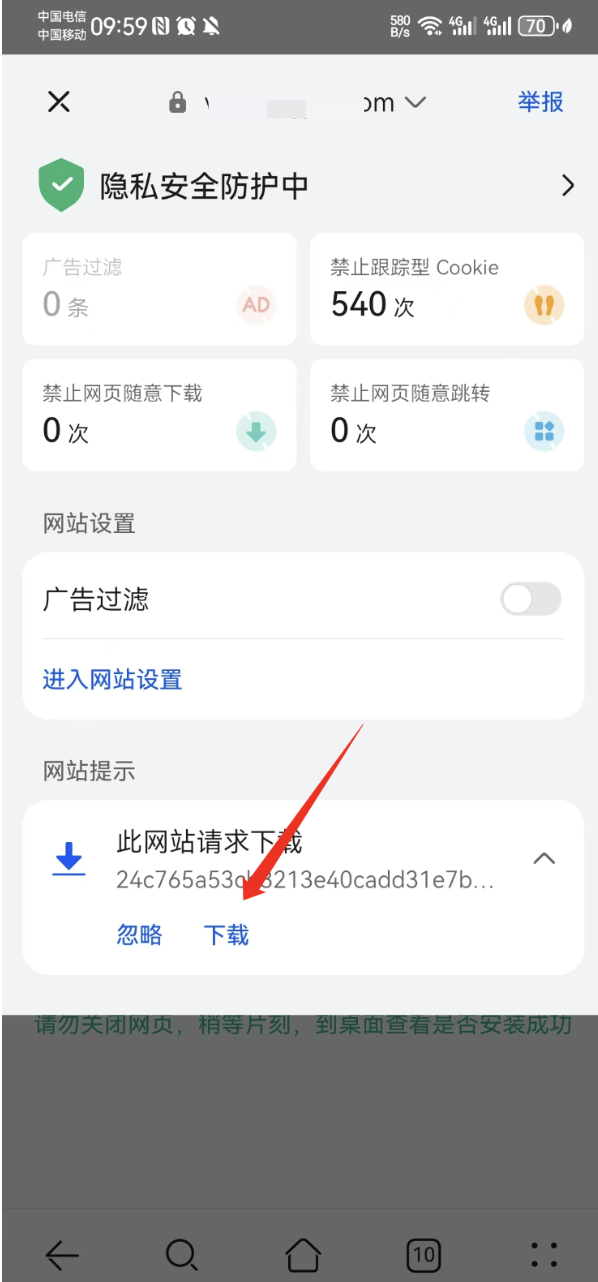
Missing Download Prompt in Huawei Browser
When the Huawei browser shows a download confirmation, it hides itself automatically after a few seconds if you do not tap in time. Tap the bell icon in front of the address bar to reopen the prompt, then tap Download at the bottom of the dialog.
Grant Unknown-Sources Install Permission
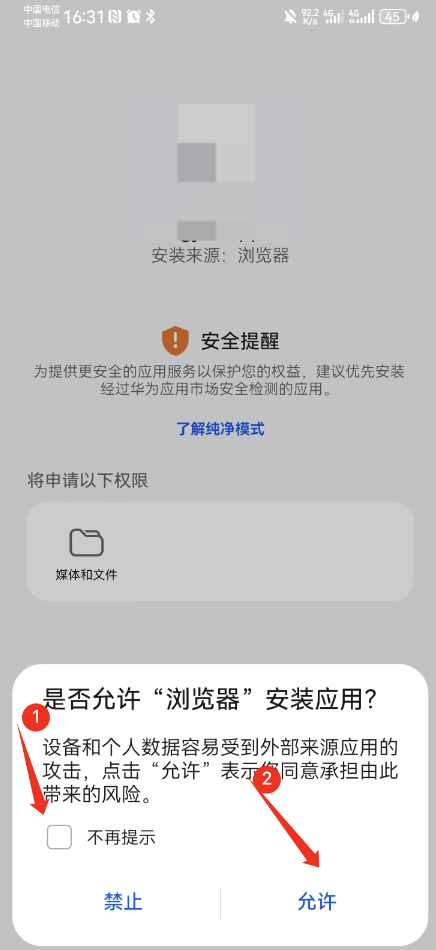
When installing an APK, the system asks you to grant install permission to the current app (usually the browser or file manager). Accept the dialog.
Recommendation to Install via AppGallery
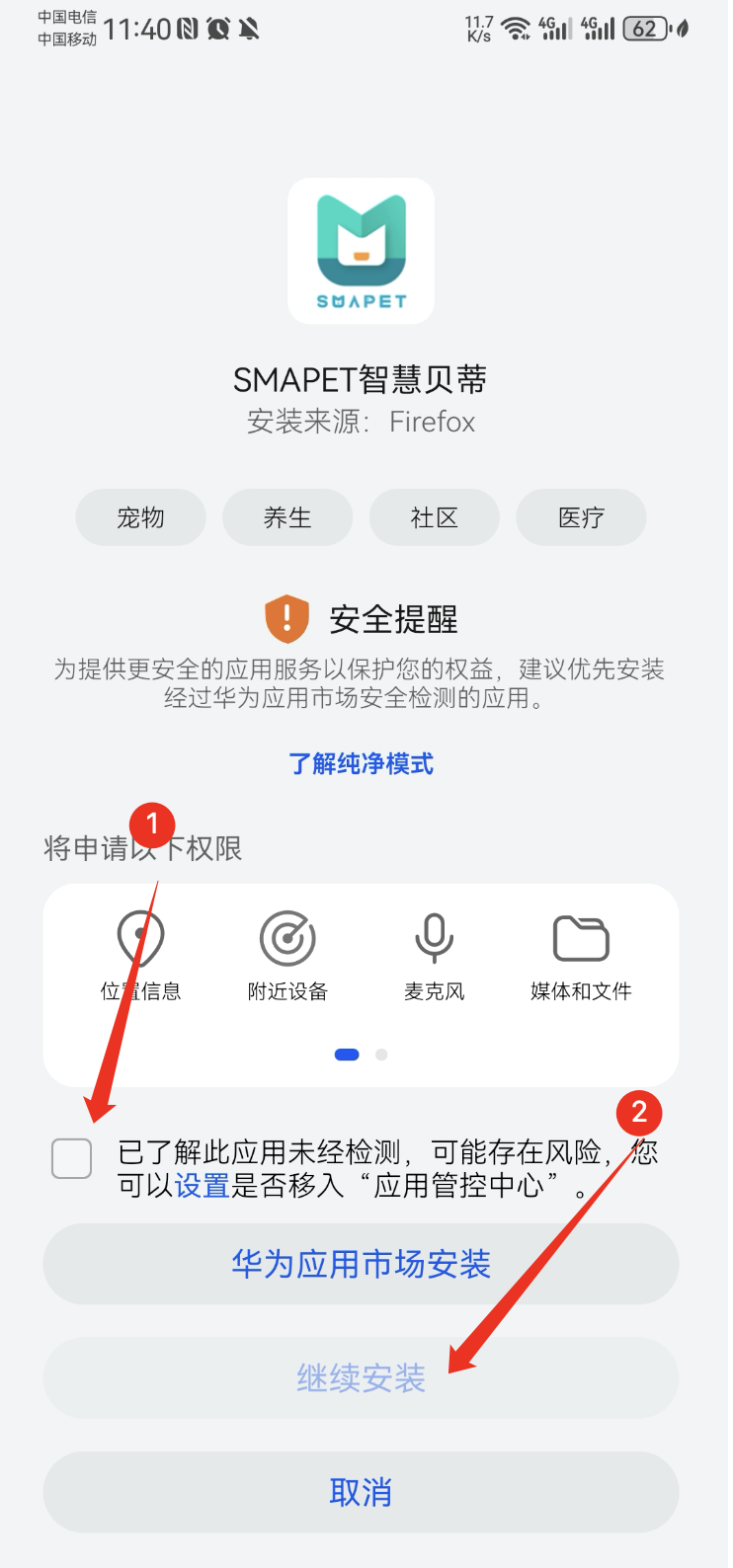
Some versions recommend downloading the same app from Huawei AppGallery. Tick I understand this app has not been checked and tap Continue to install to complete the local APK install.
Android False-Positive Virus Reports
Common reasons Android apps get flagged as malware by mainstream security tools, and where to appeal.
Xiaomi / Redmi Installation Notes
Common issues when installing non-Mi-Store APKs on Xiaomi and Redmi devices — Security Center blocking, risk warnings, unreviewed prompts, and store recommendations — with fixes for each.